
System Prompt and Knowledge Base Access Control
Your system prompts and knowledge base contain proprietary sales strategies and business processes. This guide explains how access to that AI configuration is restricted by user role, and how to grant access when a team member genuinely needs it.
The Problem This Solves
Previously, sensitive business logic, system prompts, and knowledge base content were accessible to all team members, including Trusted Employees and Part-time Agents. This created security concerns: these users could view, and potentially modify, critical AI configuration containing your proprietary sales strategies.
How It Works Now
System prompts and knowledge base content are restricted to Owners and Admins only, through new protected endpoints. Non-owner/admin users (Trusted Employees and Agents) receive 403/404 errors when attempting to access these features, and the AI Agent tab is hidden from their view.
What Changed
- The frontend now uses separate, protected API endpoints for system prompt and knowledge base management.
- Only users with Owner or Admin roles can view and edit: system prompts, knowledge base documents, and AI Agent configuration.
- Trusted Employees and Agents can still use all other features, but cannot see or modify AI settings.
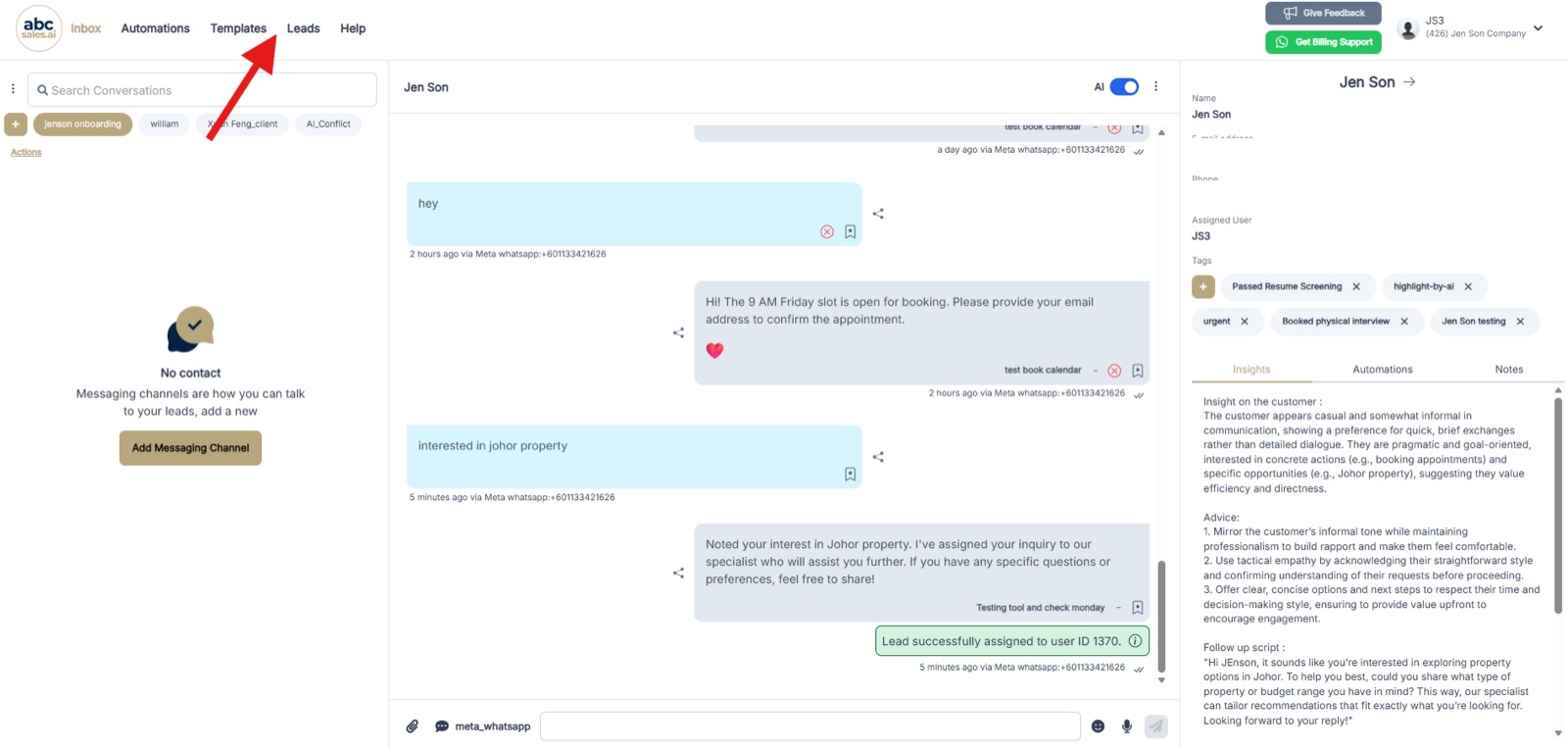
AI Agent tab visibility restricted by user role
Who Can Access What
- Owner: Can see the AI Agent tab and edit system prompts.
- Admin: Can see the AI Agent tab and edit system prompts.
- Trusted Employee: Cannot see the AI Agent tab or edit system prompts.
- Agent: Cannot see the AI Agent tab or edit system prompts.
Key Points
- Security first: This change protects your competitive advantage by keeping your AI configuration private from non-management users.
- No disruption to sales: Your sales agents and trusted employees can still chat with leads, use the AI, and access all conversation features. They just cannot see how the AI is configured.
Frequently Asked Questions
Will this affect my AI's ability to respond to customers?
No. The AI continues to work exactly as before for all users. Only the ability to view and edit AI configuration has been restricted.
Can I still let certain trusted employees see the system prompts?
Yes. Simply change their role to Admin in the Users settings, and they will regain access to the AI Agent tab.
What happens if a Trusted Employee tries to access the AI Agent tab?
They will see a 403/404 error, or the tab will be hidden from their navigation menu entirely.
Next Step
Review your team member roles in Profile → Users to ensure the right people have the appropriate level of access to your AI configuration.