
How to Set Up Two-Factor Authentication
Two-factor authentication adds an extra security step when you log in to ABC Sales AI. You can receive a 6-digit verification code by email or use an authenticator app. You can also enable both methods and choose one each time you log in.
This helps protect your account even if someone knows your password.
Choose a verification method
ABC Sales AI supports 2 verification methods:
- Email: Receive a one-time 6-digit code at the email address linked to your account. You can turn this on with 1 click and do not need to scan a QR code.
- Authenticator app: Get a 6-digit code from an app such as Google Authenticator, Microsoft Authenticator, or Authy.
You can enable either method or both methods at the same time.
Turn on email verification
- Log in to your ABC Sales AI account.
- Go to Personal Settings.
- Open Security.
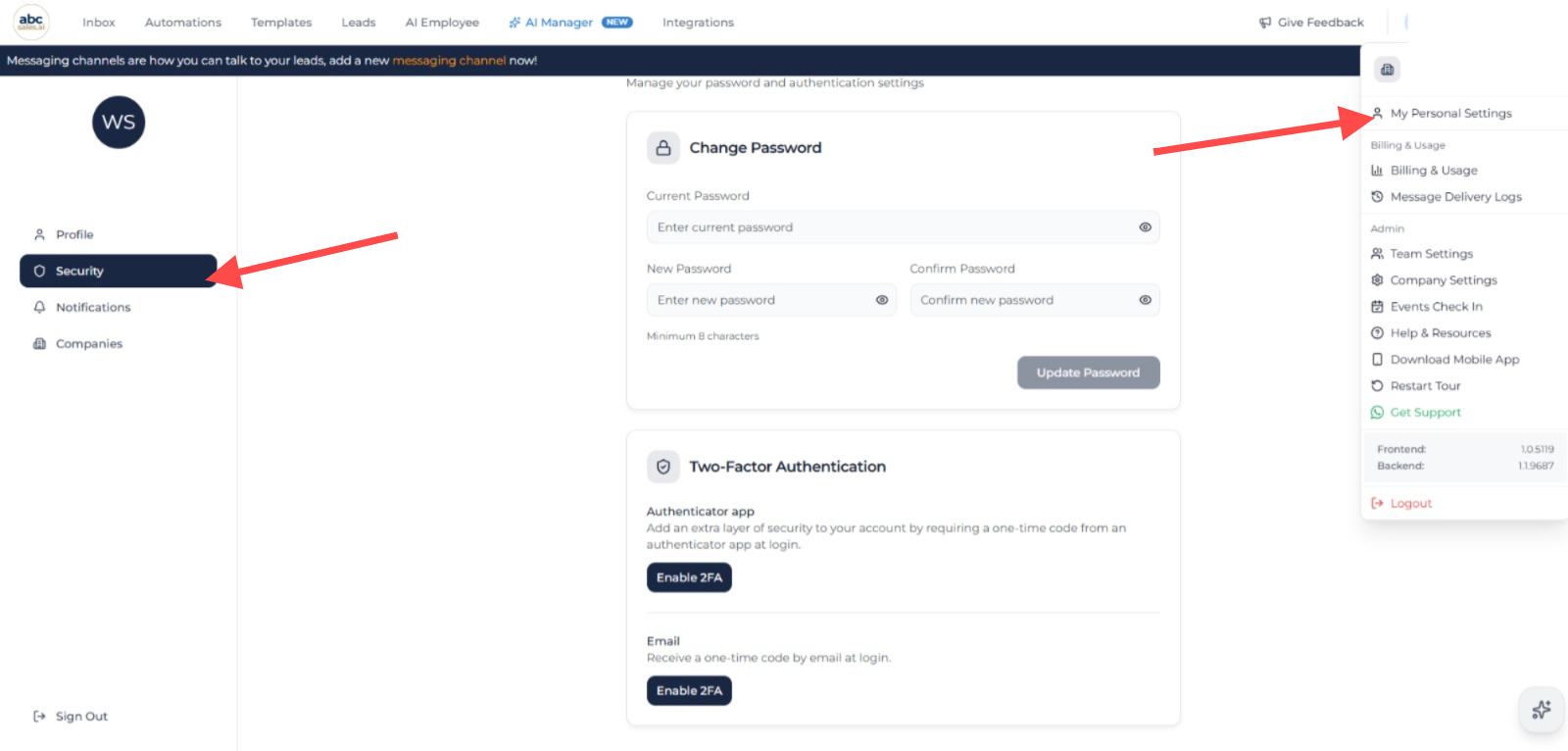
Personal Settings menu and Security page showing Authenticator app and Email verification options
- Under Email, click Enable 2FA.
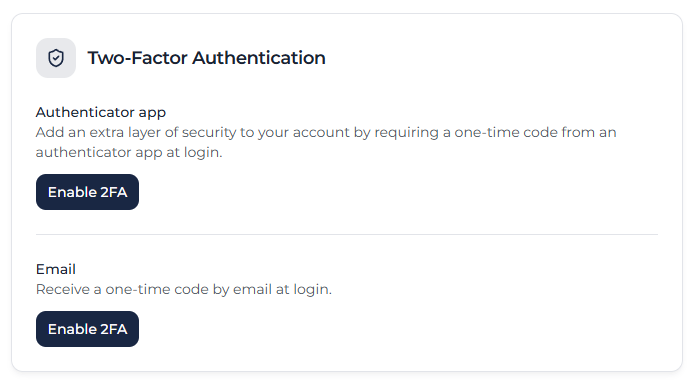
Two-Factor Authentication settings showing Authenticator app and Email verification options
Email verification is now active. The next time you log in, a 6-digit code will be sent to the email address linked to your account.
Turn on an authenticator app
Before you start, install an authenticator app on your phone, such as Google Authenticator, Microsoft Authenticator, or Authy.
- Log in to your ABC Sales AI account.
- Go to Personal Settings.
- Open Security.
- Under Authenticator app, click Enable 2FA.
- Open your authenticator app on your phone.
- Scan the QR code shown on the screen.
- Enter the 6-digit code from your authenticator app.
- Click Verify & enable.
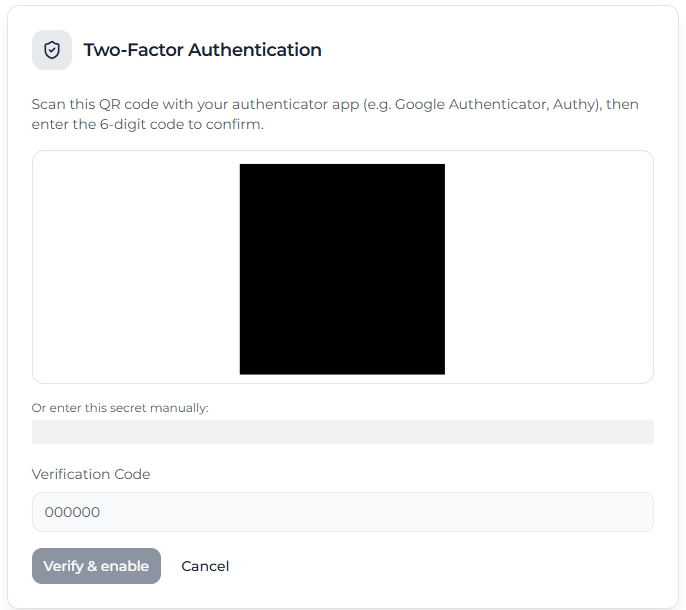
Authenticator app setup screen with a masked QR code, verification code field, and Verify & enable button
The authenticator app is now active.
Log in with two-factor authentication
- Enter your email and password as usual.
- If both verification methods are enabled, choose Email or Authenticator app.
- Get the latest 6-digit code from your chosen method.
- Enter the code and click Verify.
Email codes are sent to the email address linked to your account. Authenticator app codes change regularly, so always use the latest code shown in your app.
Turn off a verification method
You can turn off Email or Authenticator app separately. Turning off either method requires your current password.
- Log in to your ABC Sales AI account.
- Go to Personal Settings.
- Open Security.
- Find the method you want to turn off.
- Click Disable 2FA.
- Enter your current password.
- Click Disable 2FA to confirm.
If the other method is still enabled, you will continue to use it when you log in. If you turn off both methods, you will only need your email and password.
If you do not receive the email code
- Check your Spam or Junk folder.
- Make sure you are checking the email address linked to your ABC Sales AI account.
- Wait a few minutes, then try to log in again to request a new code.
If the email still does not arrive, contact your company admin or ABC Sales AI support for help.
If you cannot access your authenticator app
If both methods are enabled, choose Email when you log in. Otherwise, contact your company admin or ABC Sales AI support for help.
For security reasons, we may need to verify your identity before restoring access to your account.