
WhatsApp Error 131048: Spam Rate Limit Hit
Error 131048 means your WhatsApp Business Account hit Meta's Messaging Limits cap, for example 250 business-initiated conversations in a rolling 24-hour period. New outbound template messages fail until the window clears or your tier is upgraded.
- Symptom: Messages fail to send in WhatsApp / template message send fails.
- Likely cause: Your WhatsApp Business Account hit the Messaging Limits cap (for example, 250 business-initiated conversations in a rolling 24-hour period).
What This Error Means
Meta limits how many business-initiated conversations your WhatsApp Business Account can start within a rolling 24-hour window.
If you exceed the current tier (commonly 250), new outbound business-initiated messages may fail until:
- The rolling 24-hour window drops below the limit, or
- Your account is upgraded to a higher messaging tier.
Quick Checks (Confirm It Is a Limit Issue)
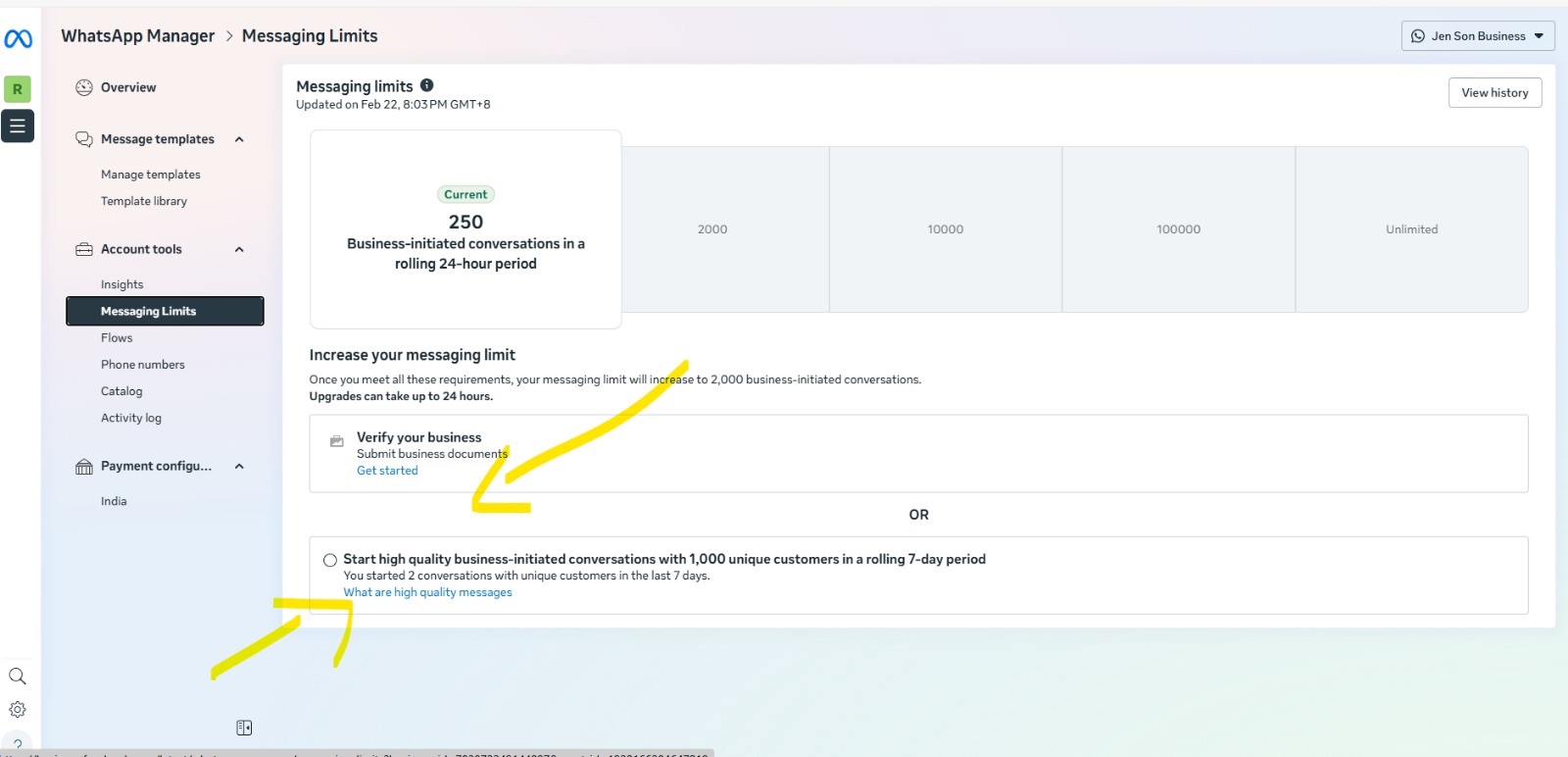
WhatsApp Manager Messaging Limits page showing the current tier
- In WhatsApp Manager, go to Account tools → Messaging Limits.
- Check your current tier and whether it shows 250 (or another tier).
- If you recently sent many first-time outreach messages, this is likely the cause.
Link: WhatsApp Manager Messaging Limits
Resolution Options
Option 1: Wait for the Rolling 24-Hour Window
- Stop new outbound outreach.
- Wait until enough time has passed for the rolling 24-hour count to drop.
- Try again 24 hours after the bulk send period.
Option 2: Increase the Messaging Limit (Upgrade Tier)
Meta generally increases your messaging limit when you meet one of the requirements shown on the Messaging Limits page, commonly:
- Business verification, or
- Sending high-quality business-initiated conversations to enough unique customers (for example, 1,000 unique customers in a rolling 7-day period).
ℹ️
After meeting the requirements, the tier upgrade can take up to 24 hours to apply.
When to Escalate
Escalate if:
- The Messaging Limits page shows a high tier (for example, 10,000+) but messages still fail.
- Messages fail even for existing customer replies inside a 24-hour customer service window.
- The account is newly verified or upgraded but nothing changes after 24 hours.
What to Collect Before Escalating
- Screenshot of the Messaging Limits page.
- Approximate time of the bulk send.
- Error code and exact error text from logs.
- WABA ID and Phone Number ID (if available).