
Send Lead Details from ABC to Google Sheets
This guide shows you how to send details captured by your AI agent (name, phone, package, appointment time, and more) from ABC to a Google Sheet using a simple Apps Script Web App and one custom tool.
1. Google Sheet Setup
- Create or open a Google Sheet and ensure a sheet tab named Sheet1 exists (you can change this in the script)
- In Row 1, add headers for every field you want to capture
- Examples:
Name,Phone,Package,Email,Company,Appointment Time
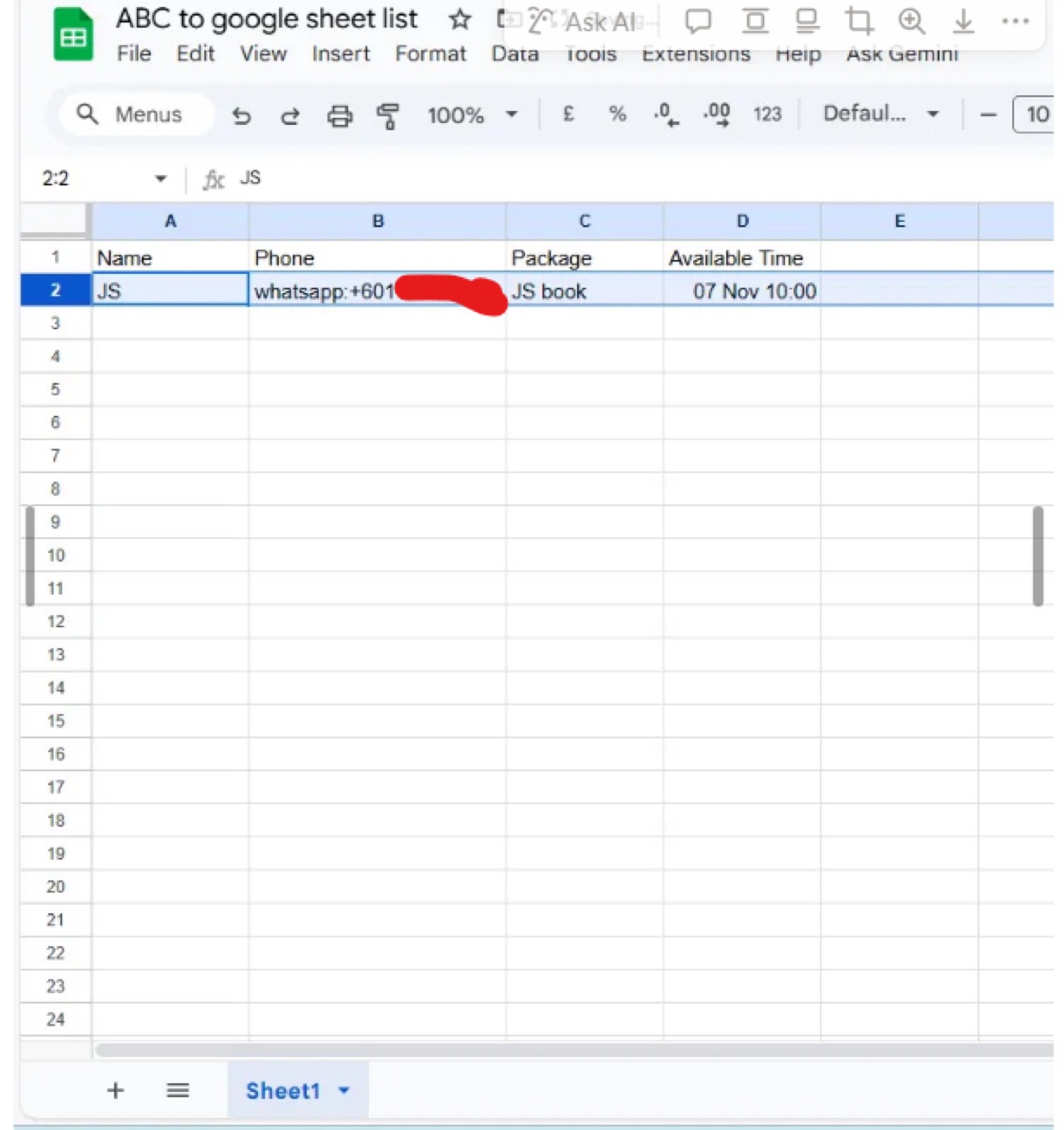
A Google Sheet with Name, Phone, Package, and Available Time headers in Row 1 and a captured lead in Row 2
2. Apps Script (Paste Exactly)
Open your Google Sheet, go to Extensions → Apps Script, replace the contents of Code.gs with the script below, and save.
The script dynamically matches ANY key from the incoming JSON to ANY column header in the sheet, case-insensitively, then appends the data as a new row.
Deploy the Web App
- Click Deploy → New deployment and select type Web app
- Set Execute as: Me
- Set Who has access: Anyone
- Deploy and authorize, then copy the Web app URL
3. ABC Custom Tool Configuration
Create a custom tool in ABC with:
- Method: POST
- URL: your Apps Script Web app URL
- Parameters: add one parameter for every field you want to post to Google Sheets, with Type: String and Location: Body
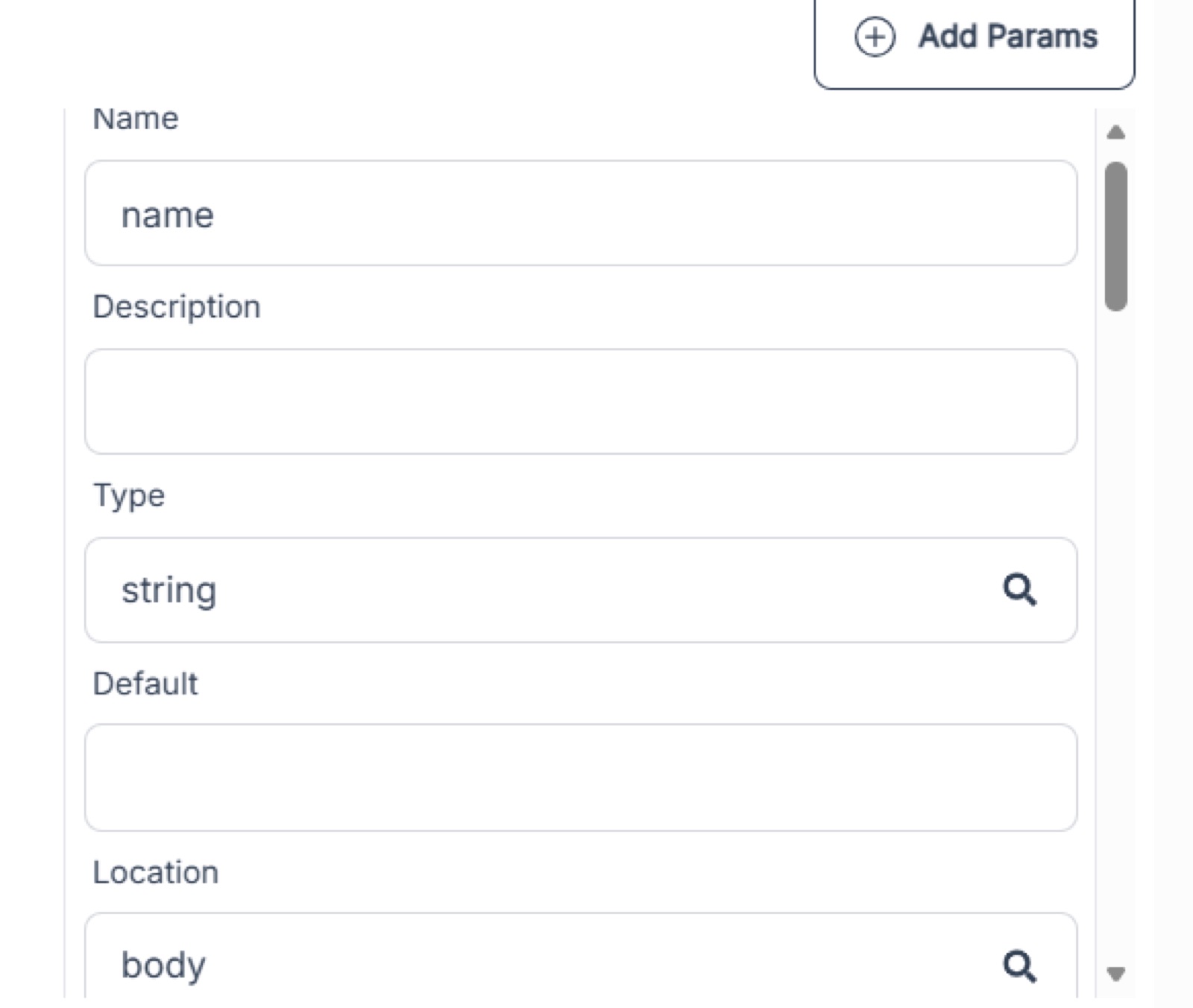
Adding a parameter named "name" with Type string and Location body in the custom tool
Parameter Names Are Super Important
The keys from your custom tool must match the sheet headers, ignoring case only. Spaces and underscores must match exactly, so be consistent:
available timematchesAvailable timeavailabletimematchesAvailableTimeavailable_timedoes NOT matchAvailable Time
Parameter naming examples:
- Name =
Name - Phone =
Phone - Package =
Package - Appointment Time =
Appointment Time - Or use underscores consistently in both places:
Appointment_Timeandappointment_time
4. Add a Simple System Prompt
Tell your AI agent when to use the tool. Example:
> You are talking with {{1}}, and their phone number is {{2}}.
> When the customer provides what they want to buy, use send_to_googlesheets to send their details to Google Sheets:
> name: "{{1}}"
> phone: "{{2}}"
> package: "package"
> available time: "available time"