
Manage and Delete Lead Tags
Lead tags help your team organize, filter, and follow up with leads.
You can manage your lead tags and delete tags that are no longer needed.
Who Can Manage Lead Tags
Only authorized users can manage or delete lead tags.
If you do not see the tag management option, your account may not have permission to make these changes.
Where to Manage Tags
- Go to Inbox or Leads.
- Open a lead.
- Go to the Tags section.
- Open the tag management option.
If you start from Leads, open a lead profile and use the settings icon beside Tags.
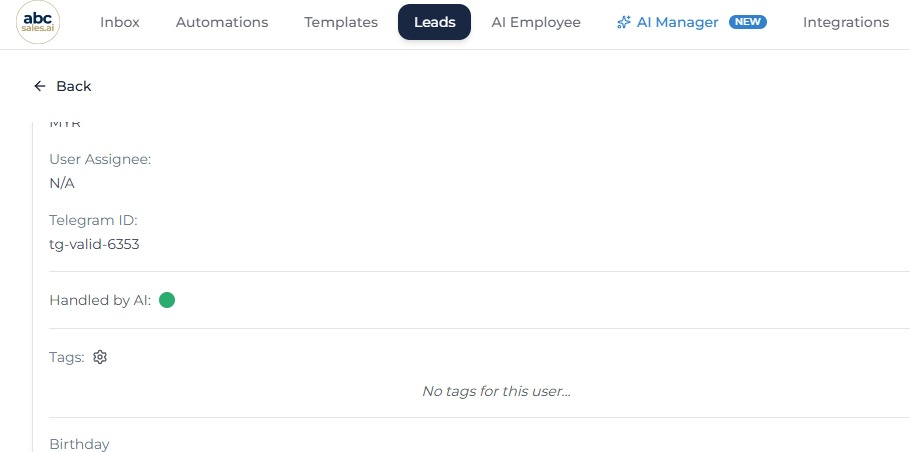
Tags section on a lead profile in the Leads page
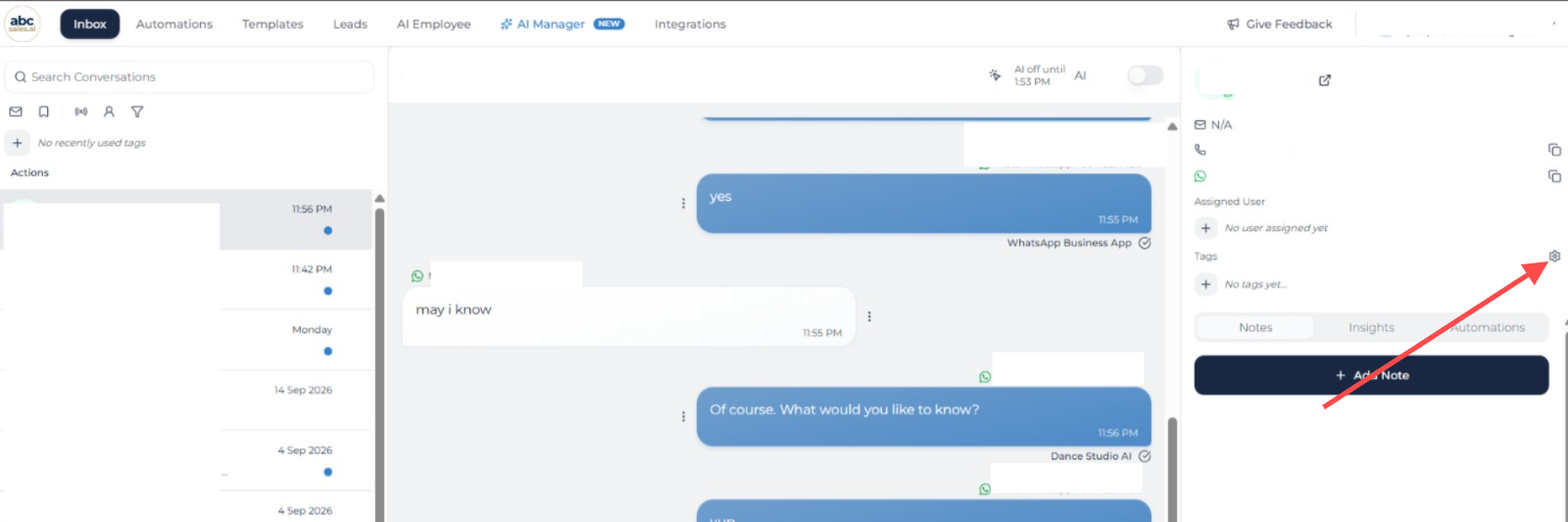
Tag management option in the lead details panel
The tag management dialog shows your existing tags and how many leads currently use each tag.
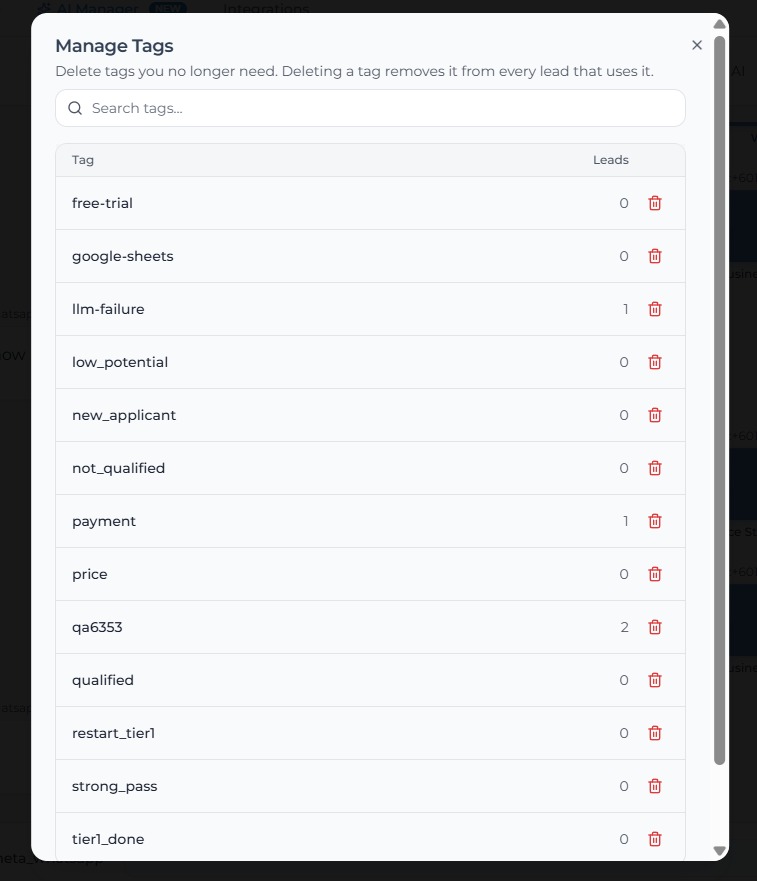
Manage Tags dialog with tag names, lead counts, and delete buttons
Deleting an Unused Tag
If a tag is not being used by any active leads, you can delete it directly.
After deletion, the tag will no longer appear as an available lead tag.
Deleting a Tag Used by Active Leads
If the tag is currently used by active leads, the system will ask you to confirm before deleting it.
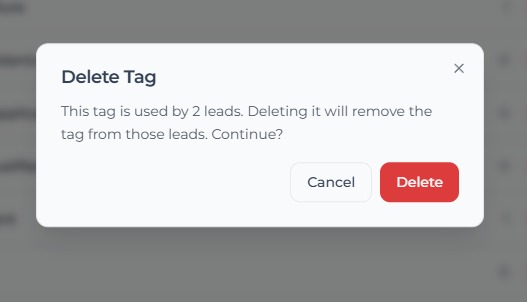
Delete Tag confirmation dialog for a tag used by active leads
After confirmation:
- The tag is removed from the affected leads.
- The leads themselves are not deleted.
- The tag will no longer be available for future tagging.
> Important: Deleting a tag only removes the tag label. It does not delete leads, conversations, notes, or customer information.