
AI Tool: Assign Lead to User
The Assign Lead to User tool lets your AI agent assign the current lead to a specific team member during a conversation. You provide the User ID of the person the lead should go to, and the AI triggers the assignment when your conditions are met.
Example description: "Use this tool to assign the current lead to user with ID 123 because they are the most appropriate agent to handle this inquiry."
Step 1: Create Your Users
Navigate to ABC Salesbot > Users and create your team members. Then give them the Trusted Employee role.
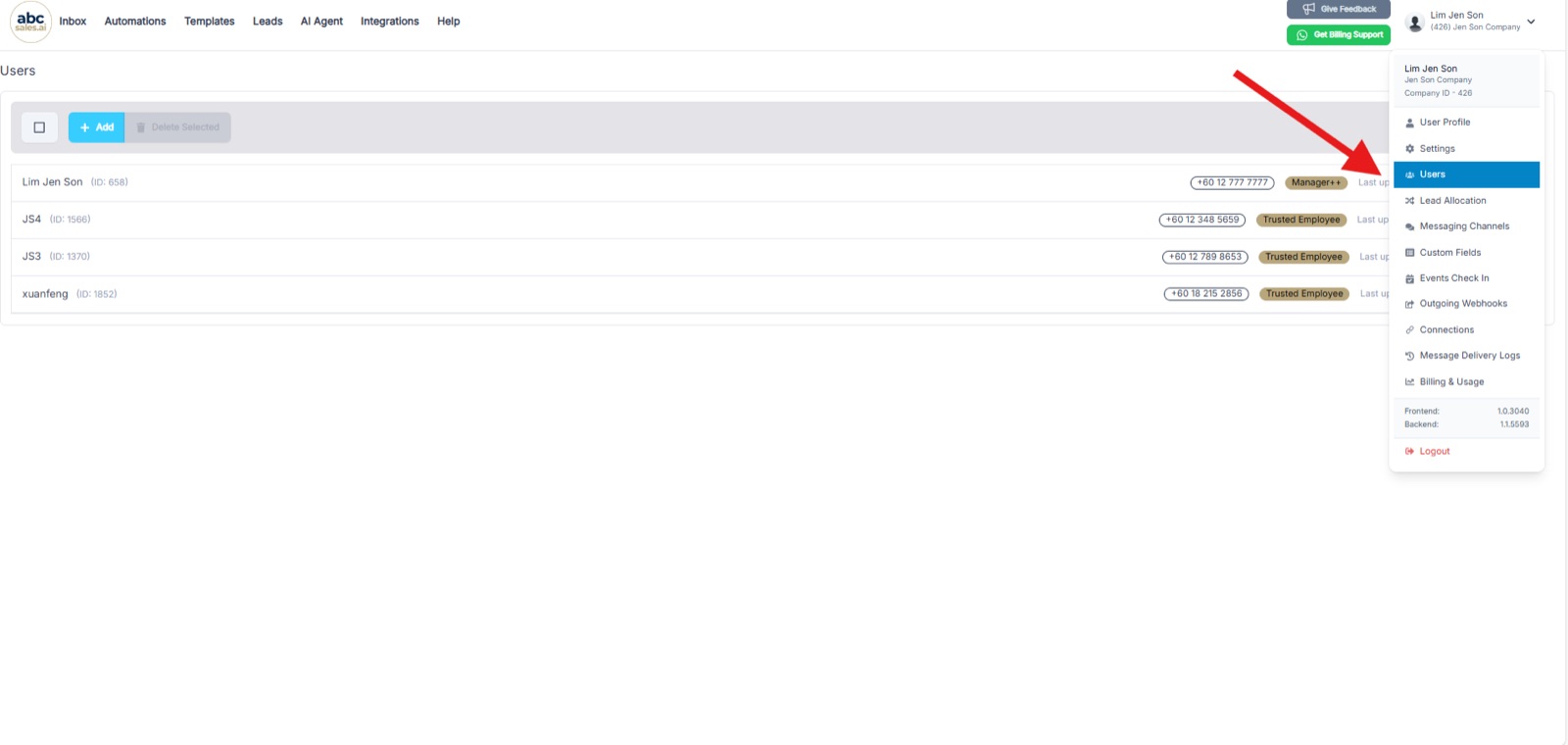
Open the account menu and select Users to see your team member list
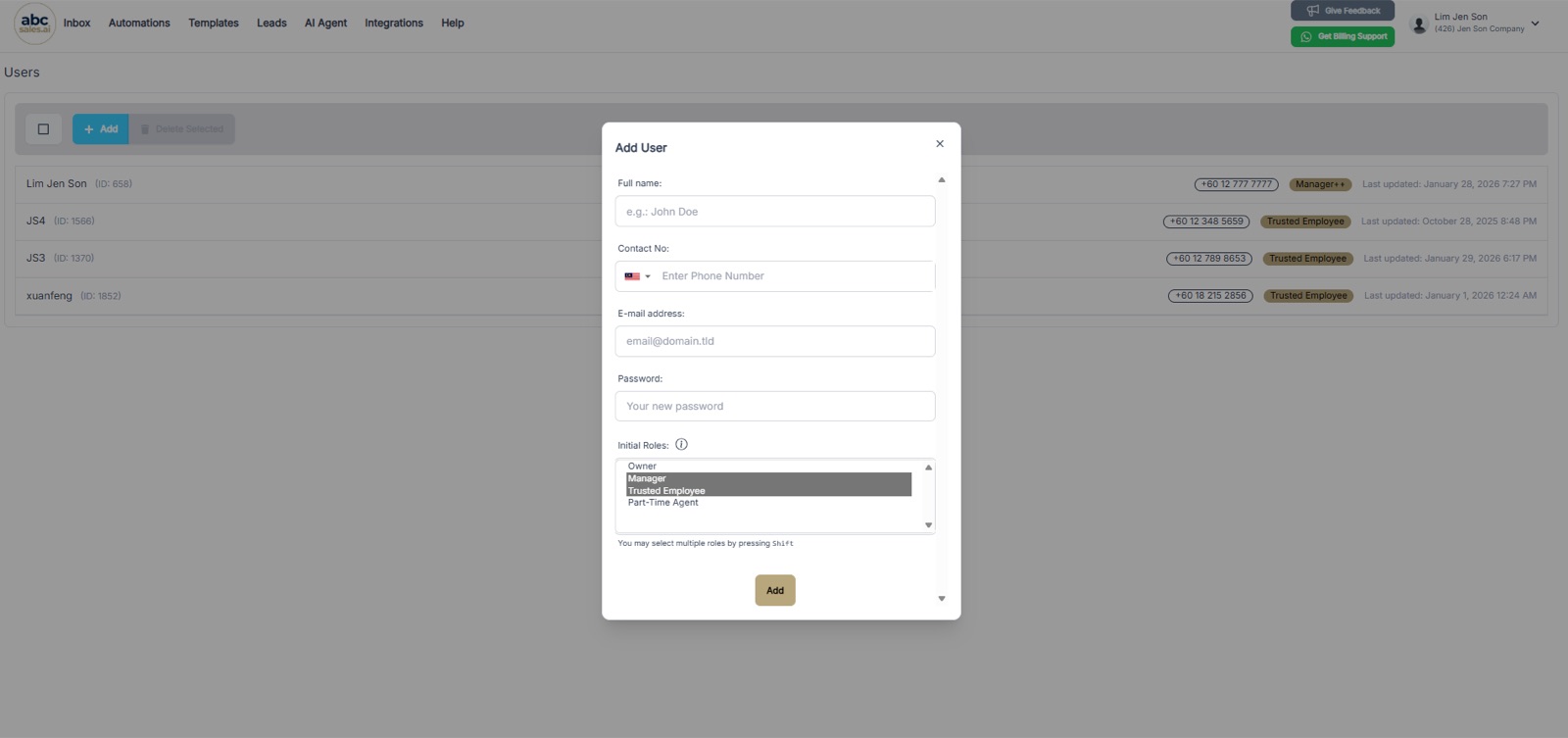
In the Add User form, select Trusted Employee under Initial Roles
Step 2: Copy the User ID
Each user has a unique ID that you need for the tool configuration. Copy the User ID of the team member you want to assign leads to. It appears next to the user's name in the Users list.
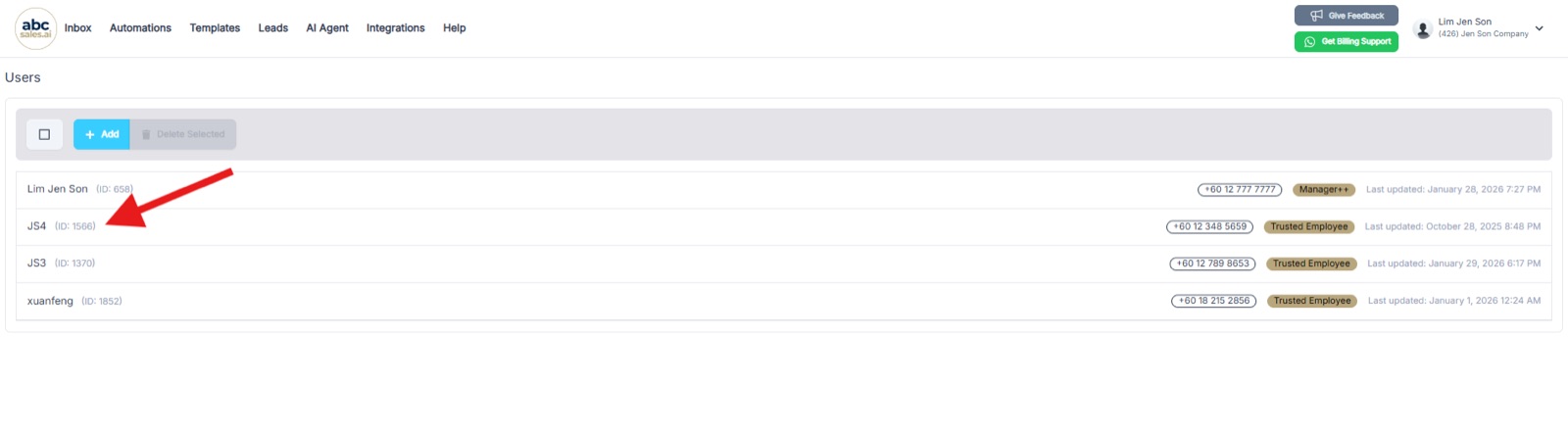
Each user's ID is shown beside their name in the Users list
Step 3: Add the Assign Lead to User Tool
Go to AI Agent and add the Assign Lead to User tool.
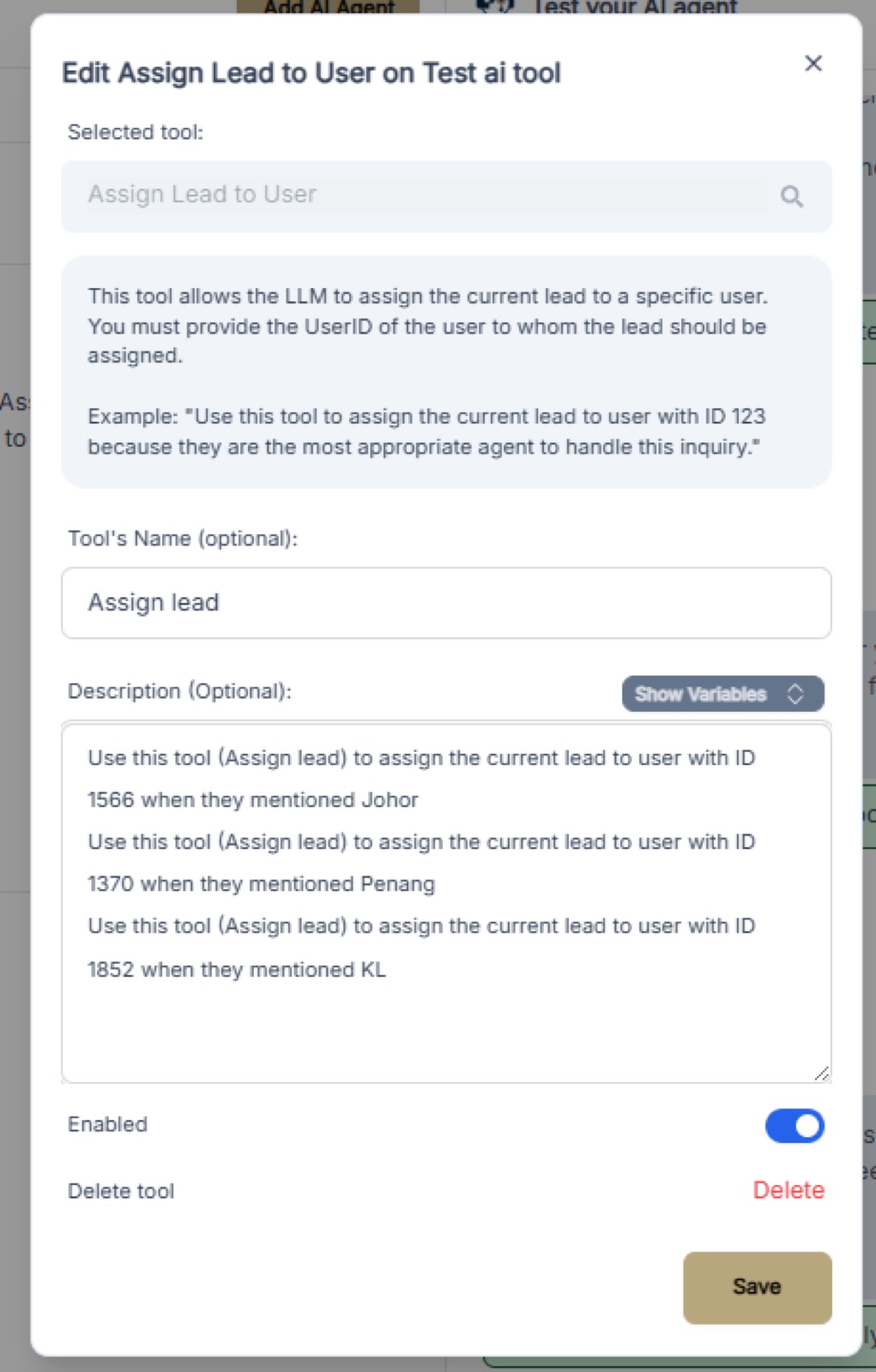
Select Assign Lead to User as the tool and fill in the name and description
Step 4: Use the Description Format
Use this format in the tool description:
> Use this tool (tool name) to assign the current lead to user with ID [USER_ID] when they mentioned (triggered event)
Examples
- Use this tool (Assign lead) to assign the current lead to user with ID 1566 when they mentioned Johor
- Use this tool (Assign lead) to assign the current lead to user with ID 1370 when they mentioned Penang
- Use this tool (Assign lead) to assign the current lead to user with ID 1852 when they mentioned KL
Step 5: Paste the Description in Your System Prompt
Add the tool descriptions to your AI Agent's system prompt so the LLM knows when to trigger the assignment.
Step 6: Test Your AI via WhatsApp
Send a test message mentioning one of your trigger keywords (e.g., "Johor", "Penang", "KL") to verify that leads are being assigned correctly to the specified users. You should see a confirmation in the conversation and the assigned user appear on the lead's profile.
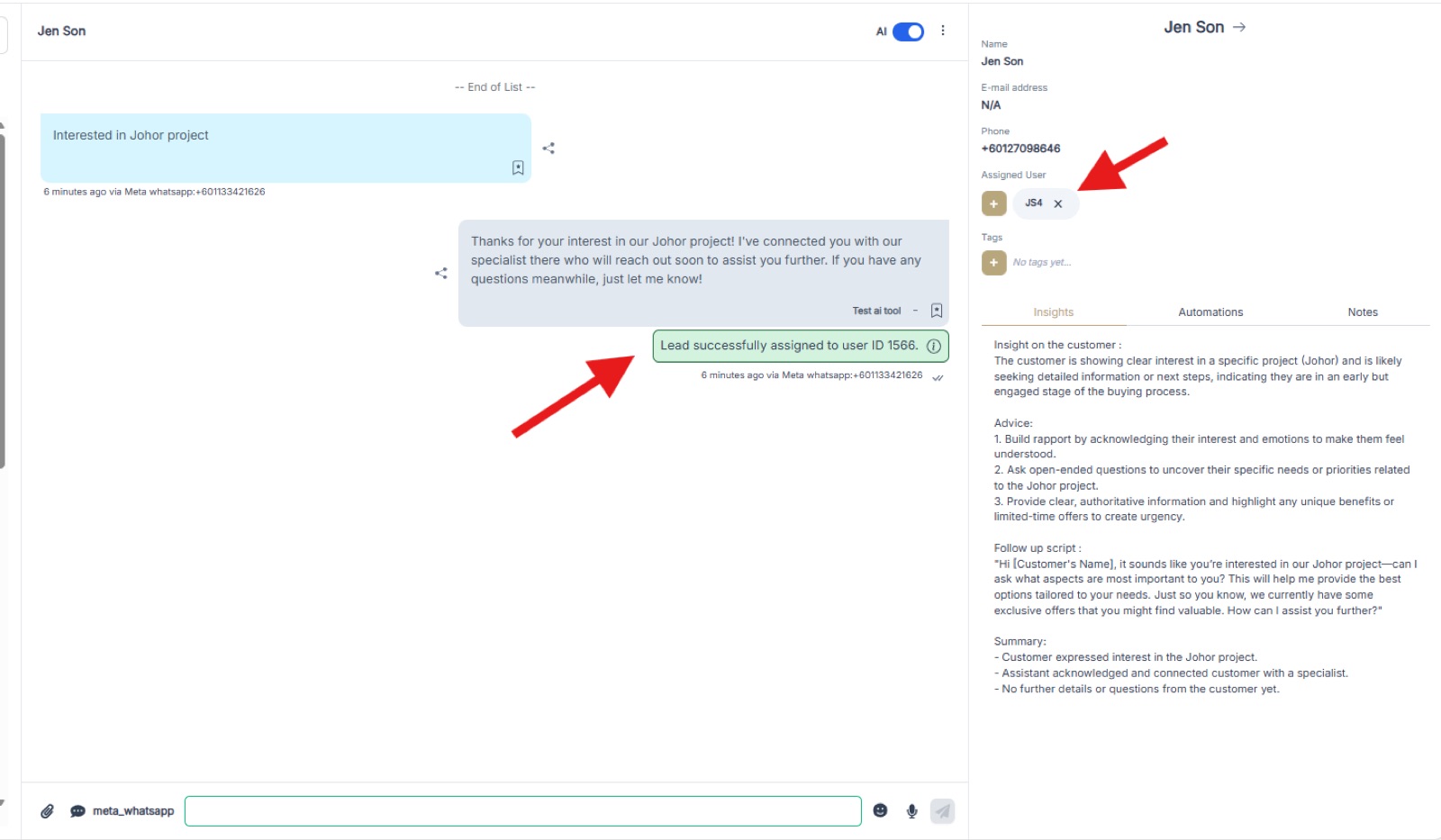
A test conversation showing the lead successfully assigned to user ID 1566 and the Assigned User updated on the lead profile