
Smart Media Reply: Send Images, Videos, and PDFs Automatically
Smart Media Reply is an AI tool within ABC Salesbot that automatically sends pre-set images, videos, or documents along with a custom text message when a customer's query matches a specific description.
Think of it as giving your AI a special folder of photos and a script. When a customer asks for "pictures of the property" or "the brochure," the AI knows exactly which visuals to show and what to say, instantly and accurately.
Smart Media Reply Walkthrough
The Problem
Most chats only send a link. Customers must click, load a page, and search before they can see the image or brochure. Your team still hunts for the right files and sends them by hand. This is slow, and people drop off.
What happens today
- Customer asks: "Can I see photos or a brochure?" The AI sends a website link. Some customers never click.
- Your team member needs to find the latest PDF or images, download, re-upload, then send. Time is wasted.
- Files live in many places. The wrong version goes out, leading to confusion and unnecessary back-and-forth.
Why this hurts
- Slower replies and extra clicks reduce trust and sales.
- Your team loses time on file searching instead of helping more customers.
- Inconsistent assets cause mistakes and mixed messages.
What we really want
- The right media appears inside the chat instantly when asked.
- The AI knows which images, PDFs, or short videos to send for each common request.
- A friendly message goes with the media, plus a clear next step like "Book a call" or "See price list".
The Solution: Smart Media Reply
Smart Media Reply lets the AI send the exact media file straight inside the chat the moment a customer asks. No links to click. No hunting for files.
How it works
- A customer asks a common question.
- The AI looks for matching "rules" you set.
- When a rule matches, the AI sends the right media plus a short message.
Why this fixes the problem
- Media appears instantly inside the chat. No extra clicks.
- You set it once. The AI handles repeat requests 24/7.
- Files stay correct and consistent. Everyone gets the same approved version.
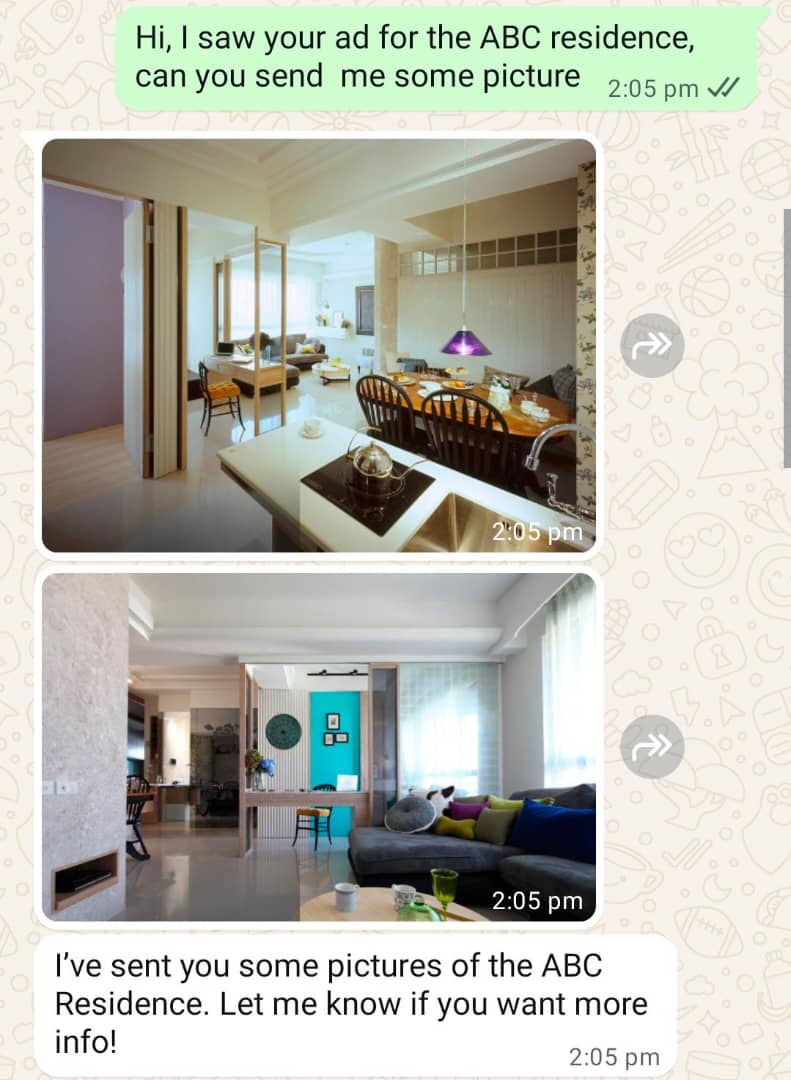
WhatsApp chat where the AI instantly sends property photos after the customer asks for pictures
Key Use Cases
- Sales & E-commerce: Automatically share product catalogs, brochures (.pdf), or feature demo videos (.mp4) when a customer asks for more information.
- Customer Support: Instantly provide visual guides, troubleshooting steps as a PDF, or warranty information to solve common problems faster.
- Real Estate: Send property photos, floor plans, or neighborhood guides when potential buyers inquire about specific listings or areas.
- Lead Engagement: Capture a lead's interest with compelling visuals and immediately follow up with a call to action, like a link to book a consultation.
How to Set Up Smart Media Reply
Option A: AI Manager (Recommended)
Upload your media to AI Manager and describe the triggers, for example: "Send the Condo 222 photos when a customer asks about Condo 222." It creates the tool and updates your system prompt for you.
Option B: Manual Setup
Step 1: Navigate to AI Tools
From your ABC Salesbot dashboard, go to the AI Agents tab. Select the AI agent you want to edit, and then click on the AI Tools sub-tab.
Step 2: Create and Configure the Tool
Click the Add Tool button and select smart_media_reply from the list of available tools. Then fill in the fields:
- Description (the "When"): This is the most important field. It's the instruction that tells the AI when to trigger this tool. Be specific. Format: Use this tool (tool name) to send the (image/video/pdf) to the customer when they asked about (images, brochure, product A). Example: Use this tool (Send Condo 222 Image) to send the image to the customer when they asked about Condo 222
- Reply message (the "What to Say"): The text message sent along with your media files. You can write a detailed description, pricing information, or add a link to your website or calendar for the next step.
- Media files (the "What to Show"): Upload your visuals. Drag and drop your files or click to select them. You can upload up to 4 files.
Supported file types and sizes:
- .pdf: up to 20MB
- .jpeg / .jpg / .png: up to 5MB
- .mp4: up to 16MB
- .3gp: up to 16MB
Make sure you click Save.
Step 3: Authorize the AI to Use the Tool
The final and most crucial step is to give your AI permission to use the tool you just created.
- Check if your AI Agent has a Section 2: Background Info for this Smart Media Reply info in the System Prompt tab. If yes, paste the instruction there. If not, paste it in Section 4: Background and Objectives.
- Paste a sentence like this: Use this tool (Send Condo 222 Image) to send the image to the customer when they asked about Condo 222