
AI Tool: Check, Reschedule, and Cancel Appointments
Your AI can do more than create appointments. It can also tell a lead when an appointment is scheduled, move it to a new time, or cancel it through any connected messaging channel.
Two AI tools work together, with a different role for each one:
- Check Appointments finds the appointment already recorded for the current lead. It is read-only and does not change the calendar.
- Appointment Booking checks availability and creates a new appointment. For a reschedule or cancellation, it updates or removes the appointment found by Check Appointments.
Without Check Appointments, the AI may not know which appointment to change and could create a duplicate booking.
What Check Appointments Does
Check Appointments is read-only. It lets your AI:
- Tell a lead when their appointment is scheduled.
- Find the correct appointment before rescheduling or cancelling it.
- Ask the lead to choose when more than one appointment exists.
- Avoid creating another booking by mistake.
The lead does not need to provide a calendar confirmation or event link.
How Rescheduling Works
When a lead asks to move an appointment, the AI:
- Uses Check Appointments to find the current booking.
- Asks which appointment to change if more than one exists.
- Checks whether the requested new time is available.
- Asks the lead to confirm the new time.
- Uses Appointment Booking to update the original Google Calendar event.
- Confirms the updated date and time.
The original event is updated instead of creating a second event. Its existing title and attendees are retained when the AI does not provide replacements.
If Send calendar invitations to attendees is enabled, Google Calendar sends an updated invitation to the attendees.
How Cancellation Works
When a lead asks to cancel an appointment, the AI:
- Uses Check Appointments to find active appointments.
- Asks which appointment to cancel if more than one exists.
- Asks the lead to confirm the cancellation.
- Uses Appointment Booking to remove the selected event from Google Calendar.
- Confirms the cancellation.
How to Set It Up
Step 1: Confirm Appointment Booking Is Ready
Open the AI Employee that handles appointment conversations. Confirm that Appointment Booking is enabled and connected to the correct Google Calendar.
If it is not ready, follow the Google Calendar Booking Setup guide.
Step 2: Add Check Appointments
- Open the AI Employee and go to AI Tools.
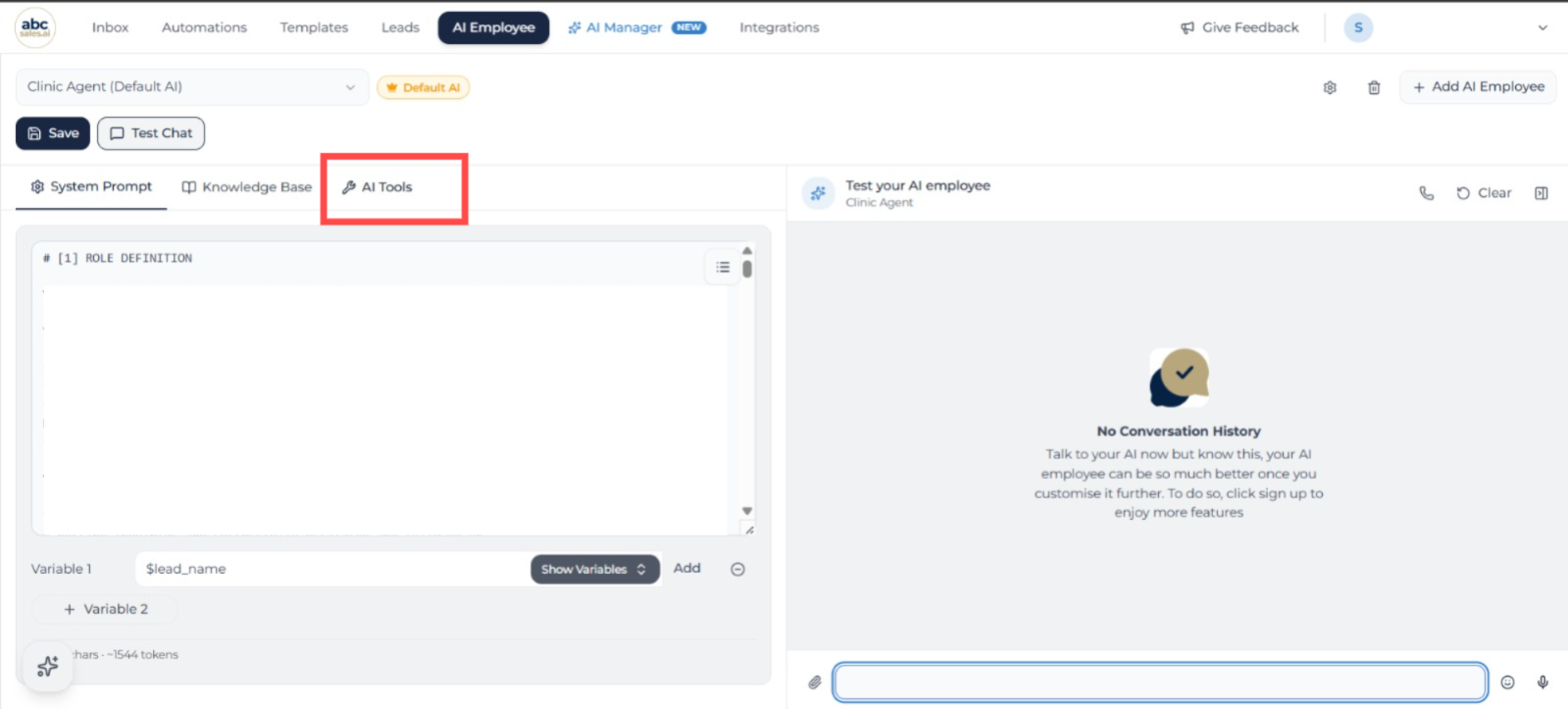
Open the AI Employee and select the AI Tools tab
- Click Add Tool.
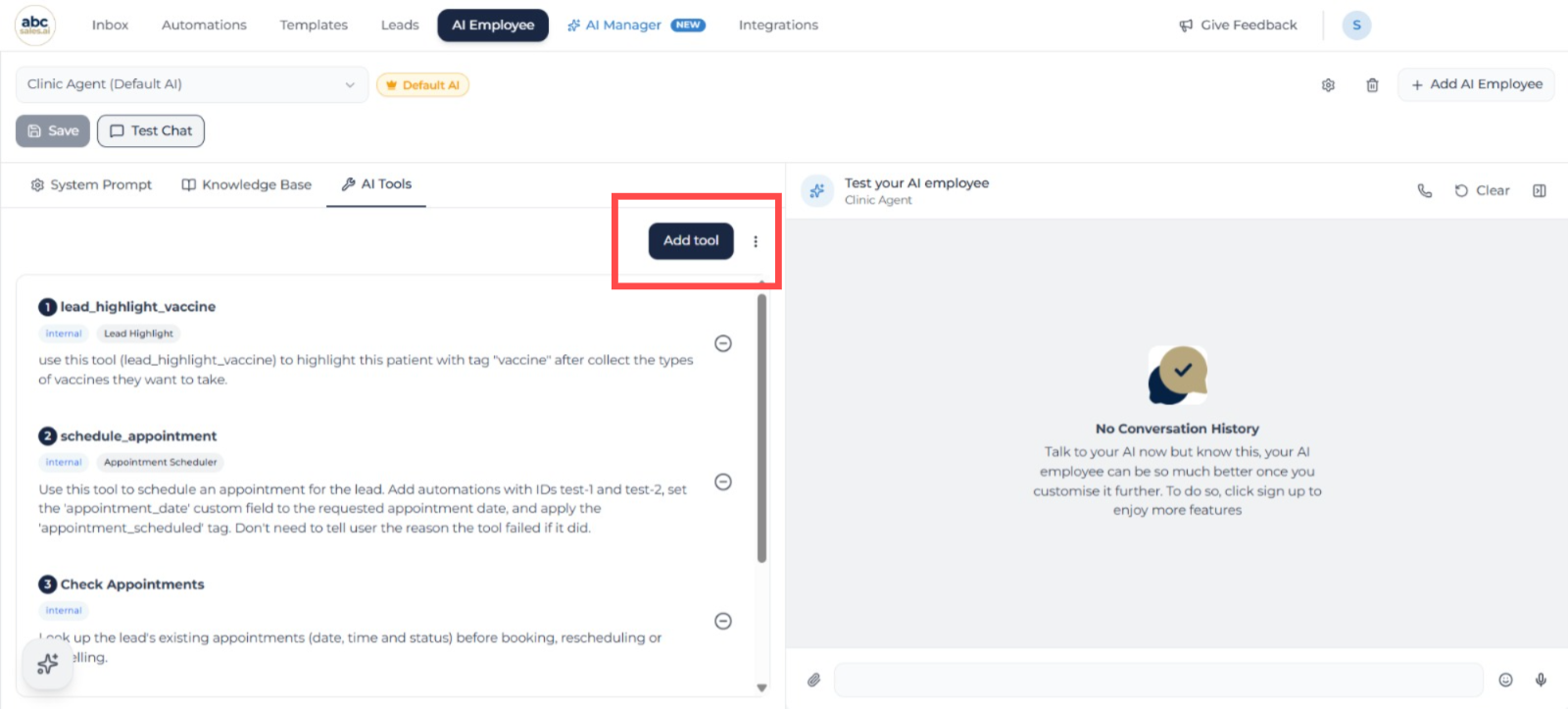
In AI Tools, click Add tool
- Select Check Appointments.
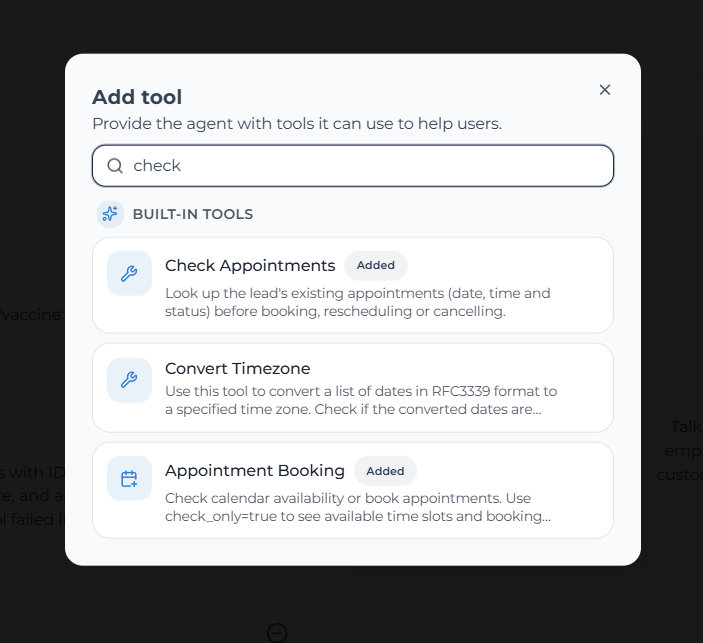
Search for Check Appointments and select the built-in tool
- Keep the tool enabled and click Save.
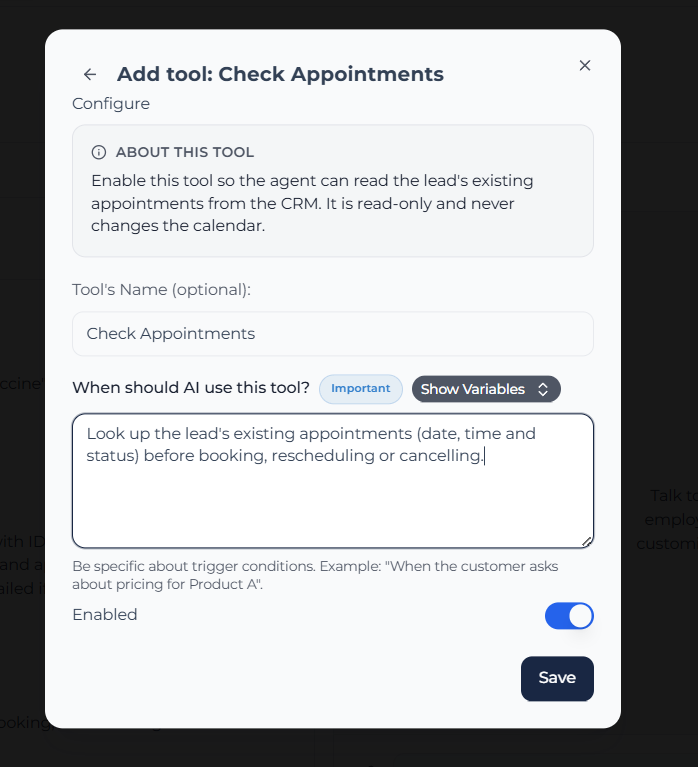
Keep Check Appointments enabled and save the tool
Check Appointments does not require a separate Google Calendar connection. It reads appointments already recorded for the current lead in ABC Sales AI.
Add Instructions to the System Prompt
Copy and paste this example into the AI Employee's System Prompt. Adjust the wording to match your booking process.
When a lead asks about an existing appointment, use Check Appointments before replying.
To reschedule, find the active appointment first. If more than one exists, ask which one to change. Ask for the new date and time, check availability, ask for confirmation, then reschedule the existing appointment instead of creating a new one.
To cancel, find the active appointment first. If more than one exists, ask which one to cancel. Ask for confirmation, cancel the selected appointment, then confirm the cancellation.
Do not ask the lead to send a calendar confirmation or event link.
Test Before Going Live
Use one test lead to confirm the complete flow:
- Book an appointment, then ask, "When is my appointment?"
- Ask to move it to another available time and confirm the original calendar event is updated without creating a duplicate.
- Ask to cancel it and confirm the selected event is removed from Google Calendar.
The AI should complete all three actions without asking for a calendar event link.
Frequently Asked Questions
Setup Checklist
- Appointment Booking is enabled and connected to Google Calendar.
- Check Appointments is enabled on the same AI Employee.
- The System Prompt includes lookup, rescheduling, and cancellation instructions.
- A test booking can be found, rescheduled, and cancelled.
- The AI does not ask the lead to send an event link.