
Microsoft Outlook Calendar Booking Setup
Connect a personal Outlook.com account or a Microsoft 365 work or school account. Your AI Employee can then check the calendar you select and book appointments during your working hours.
1. Connect your Microsoft account
- Open Integrations in ABC Sales AI.
- Find Microsoft Outlook Calendar and click Add Connection. Click Add Connection again in the confirmation window.
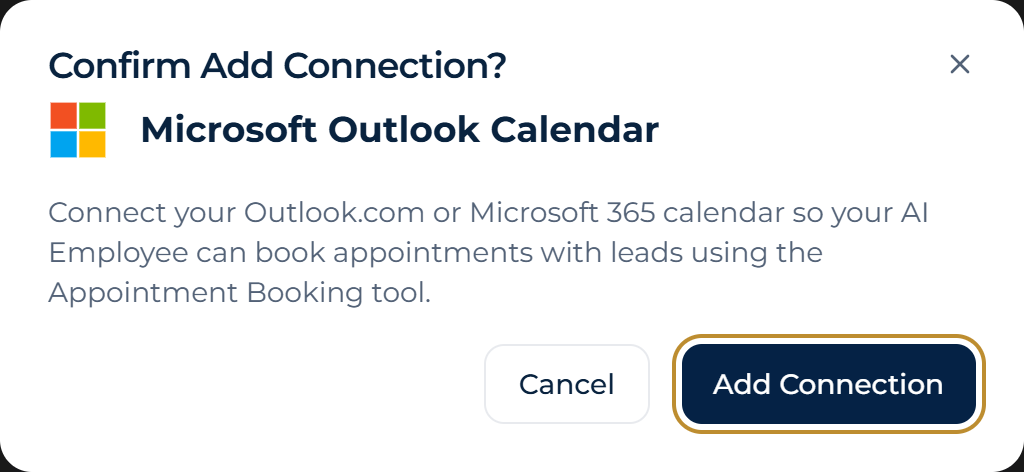
In the Microsoft Outlook Calendar confirmation window, click Add Connection to continue to Microsoft sign-in.
- Sign in to the Microsoft account that has access to the calendar you want to use and grant calendar access.
- Return to ABC Sales AI and confirm the card shows Connected.
If Microsoft asks for admin approval, ask your organisation’s Microsoft 365 administrator to review the access request. If the integration shows Reconnect Required, click Reconnect and sign in again.
2. Choose a calendar in Appointment Booking
- Open the AI Employee that handles bookings, go to AI Tools, and add or edit Appointment Booking.
- Under OAuth Integration Provider, select your connected Outlook account.
- Under Calendar, select the calendar where you want appointments to appear.
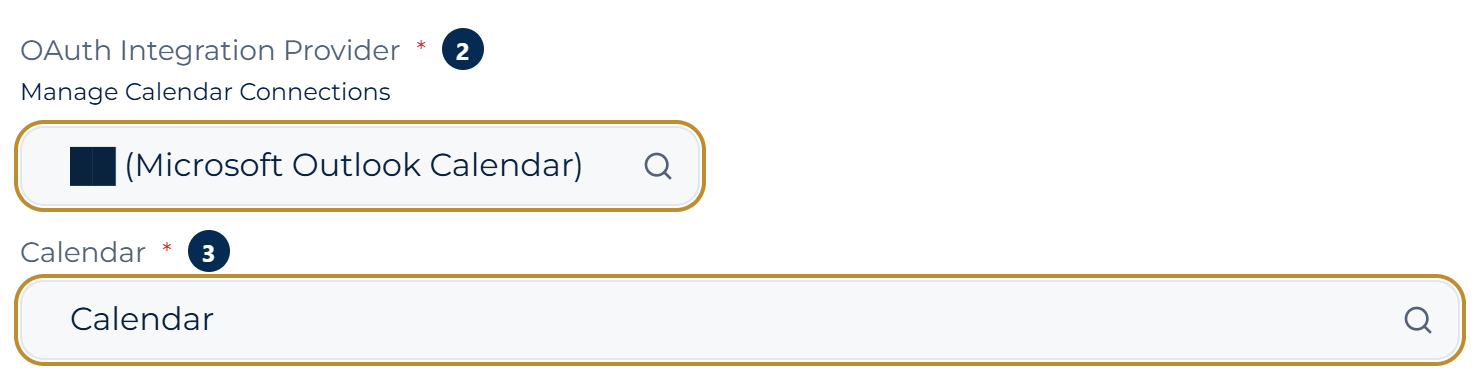
Appointment Booking with the Outlook account selector marked 2 and the calendar selector marked 3. The email address is hidden.
- Set the time zone, working hours, and appointment duration. Save the tool.
- In the AI Employee’s System Prompt, tell it when to use Appointment Booking. Ask it to check availability, offer an open time, and confirm the customer’s choice before booking.
ℹ️
Outlook sends an invitation when a booking includes attendees and sends an update when that booking changes. If you enable Create meeting link automatically, a Teams link is added only when the selected calendar supports Teams meetings. Personal Outlook.com calendars can still receive bookings.
3. Test a booking
- Use a test lead to ask your AI for a time when the selected calendar is busy. Check that it offers an available time.
- Confirm a free slot and open the event in Outlook. Check the date, time, time zone, and calendar.
- If you included a test attendee, check that they received an invitation. If you enabled Teams links and the calendar supports them, check the link in the event.
To let your AI find, reschedule, or cancel an existing booking, add Check Appointments to the same AI Employee.