
How to Set Up Automatic Follow-Up (24-Hour Window Strategy)
This guide shows you how to automatically send follow-up messages to customers who don't reply, without paying extra Meta charges, by using the 24-hour conversation window smartly.
Why This Matters: Understanding the 24-Hour Window
When a customer messages you on WhatsApp, Meta opens a 24-hour customer service window in which you can send regular messages without template charges. See Charges from Meta for Automation & Template Messages for the full pricing breakdown.
The Strategy:
- Create a follow-up automation that sends a template within ~23 hours if the lead doesn't reply
- Assign that automation as the Default Automation for each messaging channel inside Integrations (Tip: AI Manager can configure this for you if you describe your follow-up strategy.)
- If the lead replies before the follow-up, your AI removes the lead from the automation so they don't receive an unnecessary message
- The follow-up keeps the conversation alive, and if the customer responds, you get another 24-hour window at the lower in-window rate
Part 1: Create Your Follow-Up Template
- Go to Templates in ABC Salesbot.
- Click Add + to create a new template.
- Fill in the template details:
- Name: Give it a clear name like
follow-up-no-replyorfollow_up_2 - Language: Select your language
- Messaging Channel: Choose your channel (e.g., Facebook-Jenson Intro)
- Message Content: Write a friendly follow-up message
Example message:
Hi {{name}} 😊 Just checking in to see if you had a chance to look at my last message. No rush at all, happy to help whenever you're ready!
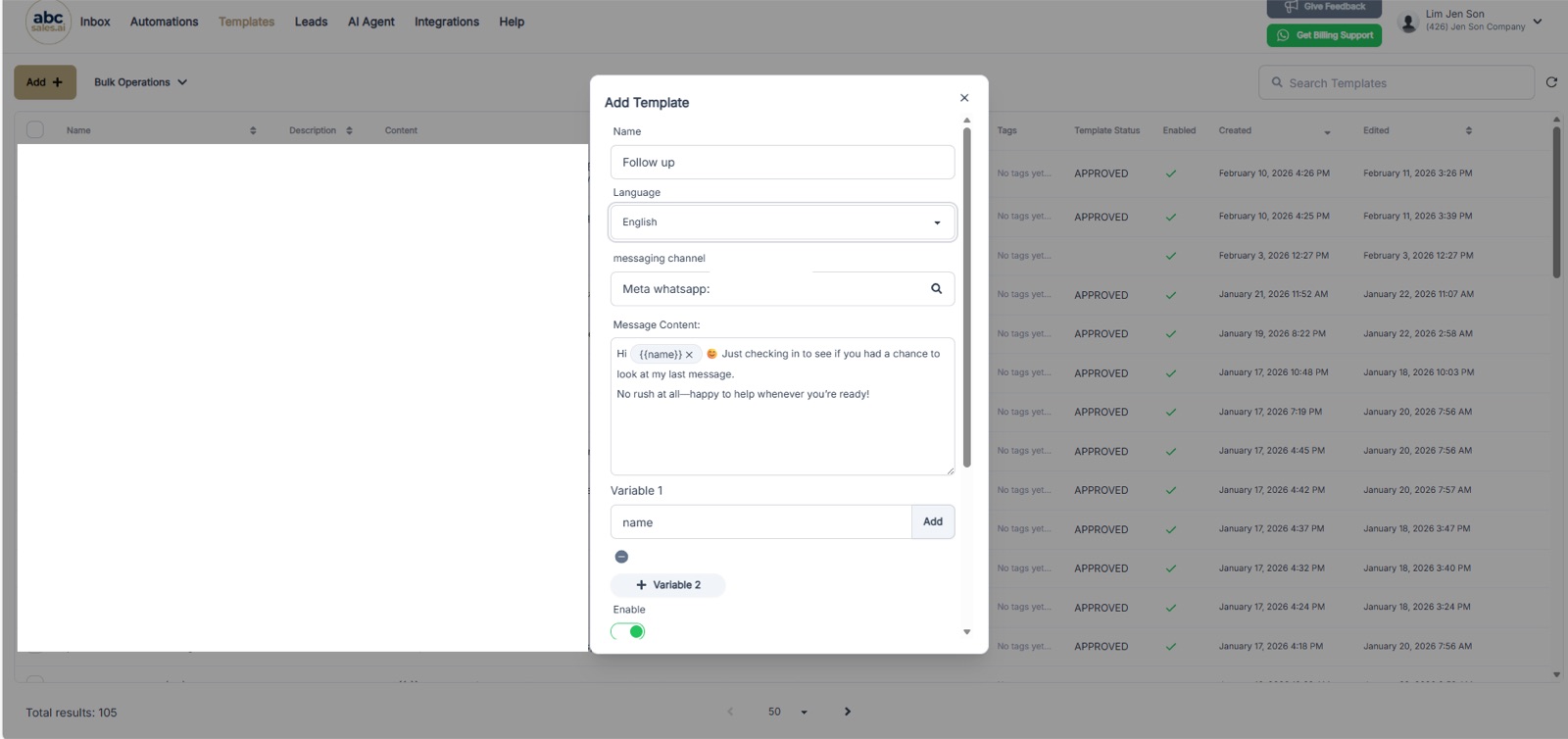
Add Template form with name, language, messaging channel, message content, and a name variable
- Add variables if needed (e.g., a
namevariable so the message greets each customer personally). - Optionally attach documents, images, or videos using Choose File.
- Submit the template to Meta for approval.
Template approval usually takes a few hours. Marketing templates may take longer than Utility templates. If you want faster approval and lower costs, see How to Change Marketing Templates to Utility Templates.
Part 2: Create Your Follow-Up Automation
If you have multiple channels, create one automation per channel and attach the matching channel's template (e.g., "Follow Up WhatsApp", "Follow Up Messenger", "Follow Up Instagram").
- Go to Automations in ABC Salesbot.
- Click Create Automation.
- Configure the settings: Name it something descriptive (e.g., "Follow Up No Reply") and toggle Enable ON.
- Click Create Automation.
- Add your template message: click the Start button in the automation flow, select your follow-up template, and set the delay to 23 hours (or any time less than 24 hours, like 22 or 20 hours).
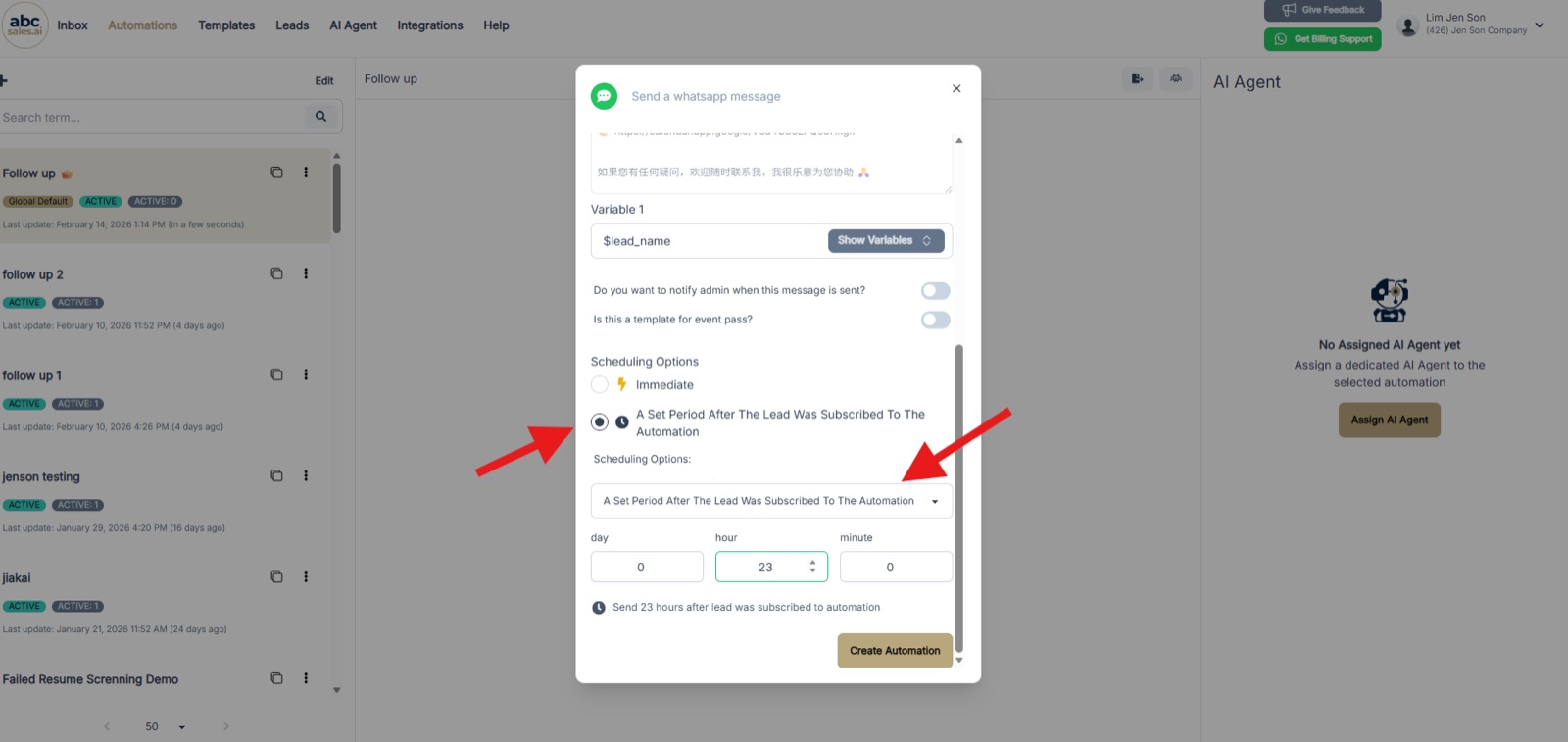
Scheduling options set to send 23 hours after the lead was subscribed to the automation
Why 23 hours? This ensures the message is sent within the 24-hour window, avoiding Meta's higher template message charges.
- Save the automation.
- Copy the Automation Slug ID from the URL or automation settings (you'll need this in Part 4). Example slug:
follow-up-no-reply-123oreducation-reminder-456.
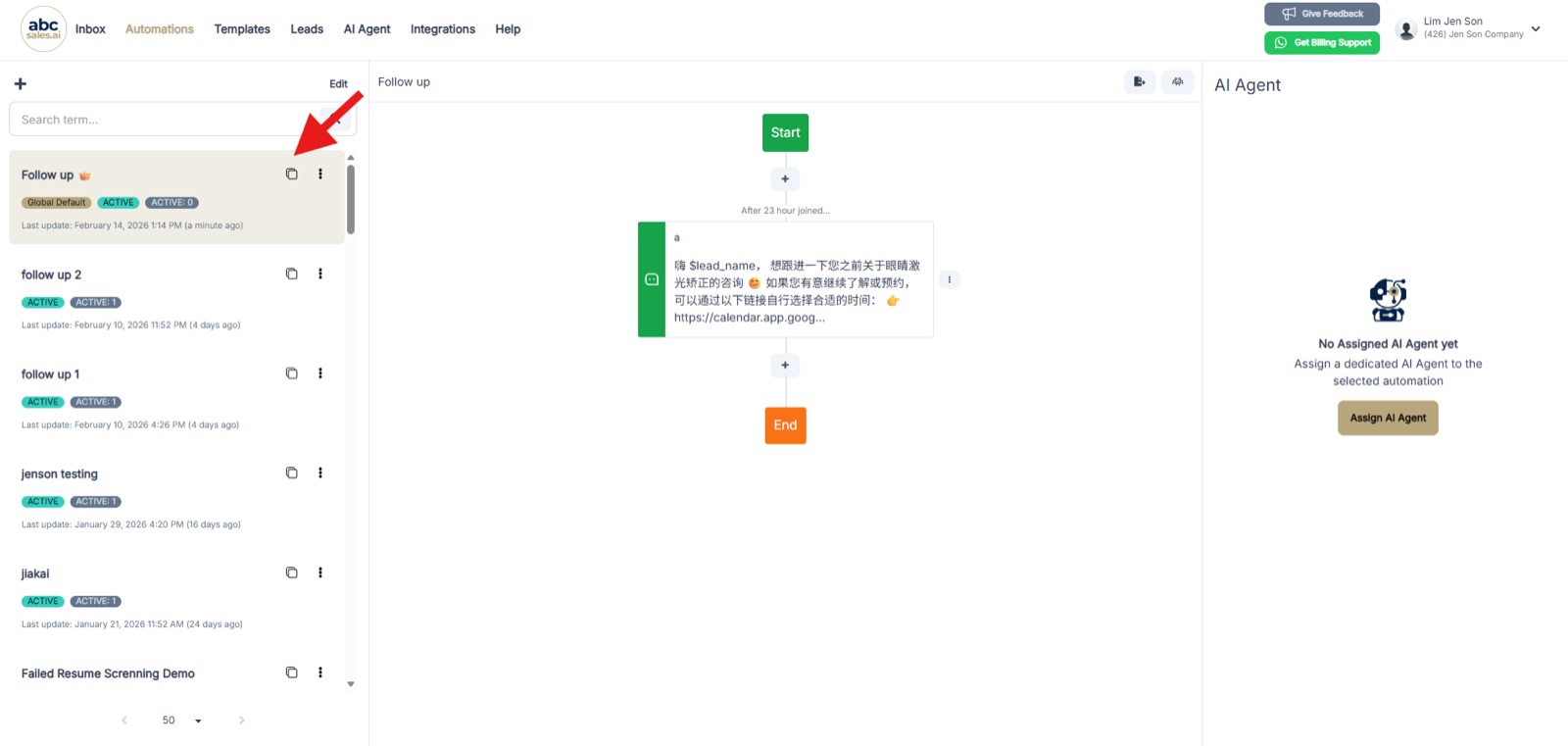
Automation flow showing the follow-up message sending 23 hours after the lead joined, with the copy button highlighted
Part 3: Assign the Default Automation in Integrations (Per Channel)
This is the key step: assign the follow-up automation as the Default Automation for each messaging channel.
- Go to Integrations.
- You will see your connected messaging channels (e.g., WhatsApp, Messenger, Instagram).
- For each channel, select the correct Default Automation:
- If you have one channel, just assign the one automation
- If you have multiple channels, create an automation + template per channel, then assign the matching automation to that channel
- Click Save.
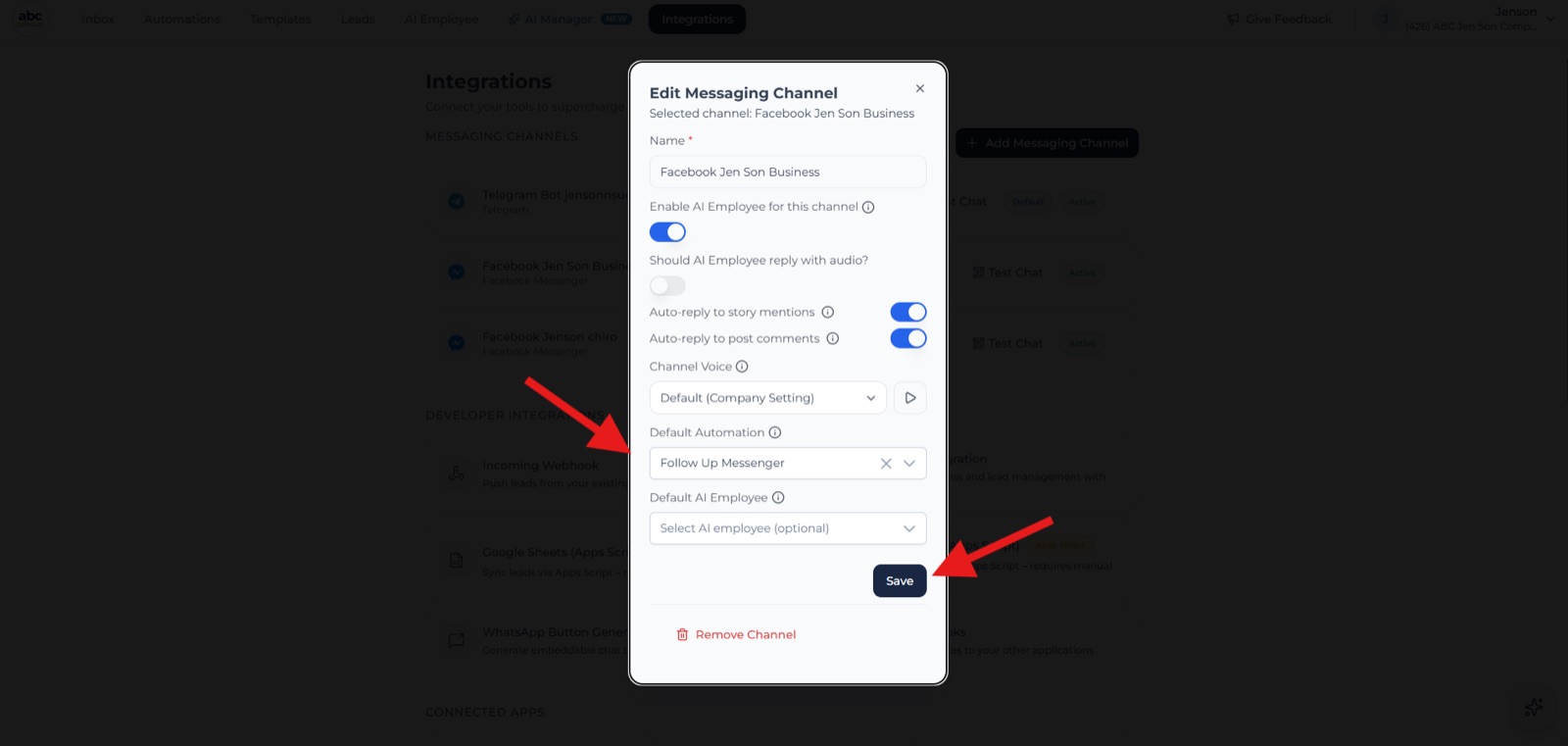
Edit Messaging Channel screen with the Default Automation dropdown set to the follow-up automation
Part 4 (Optional): Set Up the Lead Automation Tool (Remove Leads Who Reply)
This is the smart part: if a customer replies before the 23-hour mark, we want to remove them from the follow-up automation so they don't receive the "are you still interested?" message.
- Go to AI Employee -> AI Tools.
- Click Add Tool -> Select Tool.
- Find and select Lead Automation. (For a deeper walkthrough of this tool, see How to Set Up Lead Automation.)
- Configure the tool:
- Tool Name:
Unsubscribe Follow Up Automation - Description: Use this tool (tool name) to remove the lead from the automation with slug ID {follow-up-no-reply-123} if the lead booked an appointment, submitted the form, or is no longer interested in follow-up messages.
Important: Replace {follow-up-no-reply-123} with your actual automation slug ID from Part 2, Step 7, and set your trigger conditions correctly.
- Enable the tool.
- Click Save.
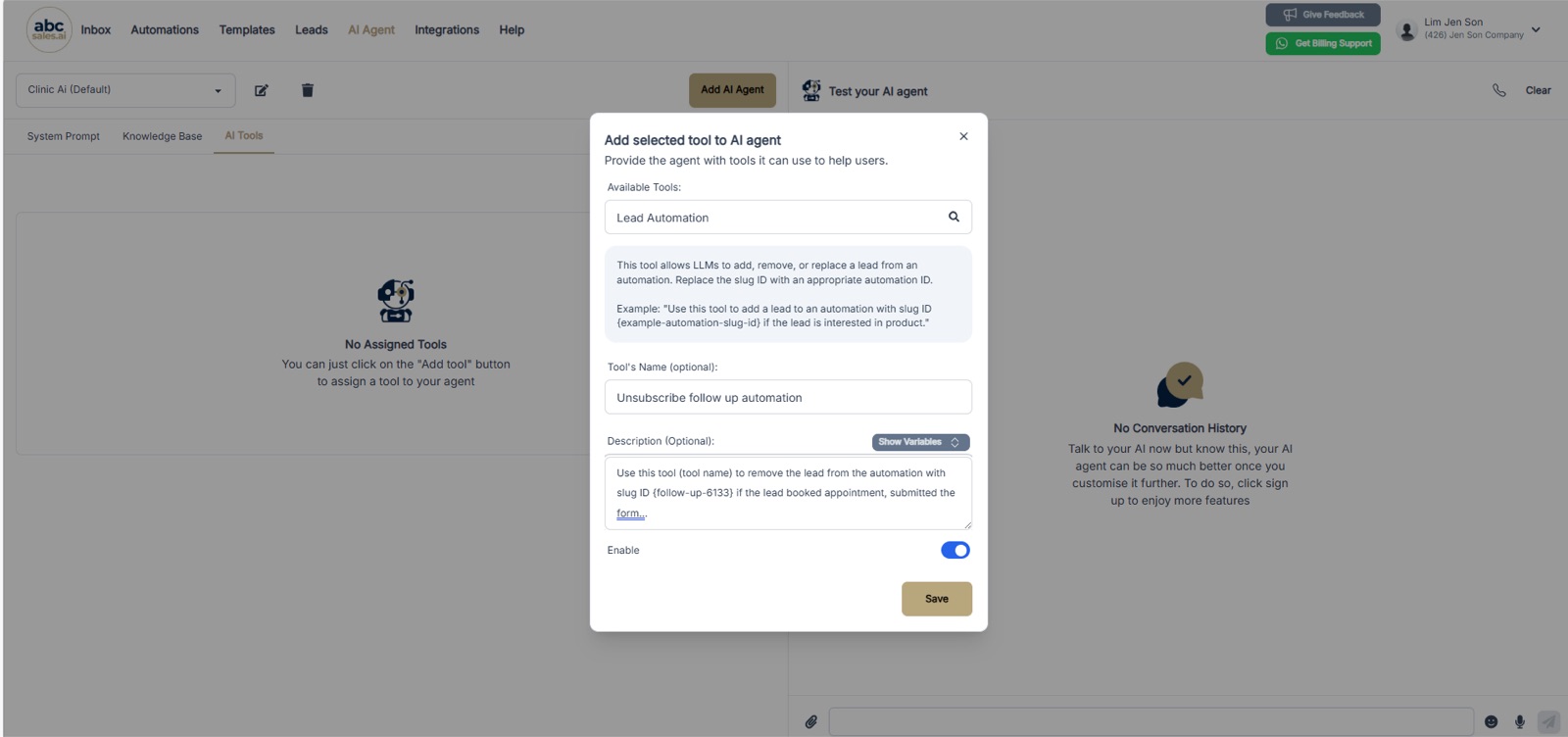
Lead Automation tool configured with the name Unsubscribe follow up automation and a description containing the slug ID
Part 5: Update Your System Prompt
Now tell your AI agent when to remove leads from the follow-up automation.
- Go to AI Agent -> System Prompt.
- Add this instruction to your system prompt (usually in the "Flow" or "Rules" section):
If the customer replies to any of your messages, books an appointment, says they are not interested, or asks to stop receiving messages, then execute the tool "Unsubscribe Follow Up Automation" to remove them from the follow-up automation. This prevents them from receiving unnecessary follow-up messages.
- Click Save.
For formatting guidance, see the System Prompt Format Guidelines.
How It Works (The Complete Flow)
Scenario A: Customer Replies Within 23 Hours ✅
- 9:00 AM: Customer sends first message: "Hi, I'm interested"
- 9:01 AM: Your AI responds and asks questions
- Customer is subscribed to the follow-up automation based on the channel's Default Automation setting in Integrations
- 10:00 AM: Customer replies: "Yes, I want more info"
- AI automatically executes the "Unsubscribe Follow Up Automation" tool
- Customer is removed from the follow-up automation
- Result: Customer does NOT receive the 23-hour follow-up message
Scenario B: Customer Doesn't Reply (Ghost) 👻
- 9:00 AM: Customer sends first message: "Hi, I'm interested"
- 9:01 AM: Your AI responds and asks questions
- Customer is subscribed to the follow-up automation based on the channel's Default Automation setting in Integrations
- Customer goes silent, no reply
- 8:00 AM next day (23 hours later): Automation sends the follow-up template: "Hi {{name}}, I noticed you haven't replied yet. Is there anything I can help clarify?"
- Customer receives the message within the 24-hour window
- Result: No extra Meta charges, conversation re-engaged
Pro Tips & Best Practices
✅ Do's
- Set timing to 23 hours or less: this ensures you stay within the 24-hour window
- Keep follow-up messages friendly and helpful: don't be pushy; offer value
- Use a name variable for personalization: it increases response rates
- Test the full flow: send yourself a test message and don't reply to see if the follow-up arrives
- Monitor your automation logs: check which customers are receiving follow-ups
❌ Don'ts
- Don't set timing to 24+ hours: you'll be charged for template messages
- Don't send multiple follow-ups too quickly: one follow-up is usually enough; more can be annoying
- Don't forget the unsubscribe logic: otherwise customers who replied will still get the "you haven't replied" message (awkward!)
- Don't use aggressive language: keep it helpful and consultative
Troubleshooting
Issue: Customers who replied are still receiving follow-ups
Check that:
- The Lead Automation tool is properly configured with the correct slug ID
- Your system prompt includes the instruction to unsubscribe leads when they reply
- The AI agent has access to the Lead Automation tool (it's enabled)
Issue: No one is receiving follow-ups
Check that:
- Each messaging channel has the correct Default Automation selected in Integrations
- The template has been approved by Meta
- The automation is enabled (not paused)
Issue: Template was rejected by Meta
- Remove promotional language and make it more conversational
- Consider switching from Marketing to Utility category
- Make sure the message provides value, not just a sales pitch
Cost Savings Summary
Without this strategy:
- After 24 hours you must use a template message
- Template message cost: $0.03 to $0.15+ per message (depending on category)
- 100 follow-ups/month = $3 to $15+ per month
With this strategy:
- Template fee: $0 (no Meta template charge inside the window)
- 100 follow-ups/month = no template fees
- ABC credits still apply to every outgoing message, and now Meta bills in-window replies per message at the lower in-window rate, after the first 1,000 service replies each month on every number
Summary Checklist
- Create the follow-up template and get Meta approval
- Create the automation (one per channel if you have multiple channels)
- Set the automation delay to 23 hours (or less than 24)
- Copy the automation slug ID
- In Integrations, set the Default Automation for each messaging channel
- Set up the Lead Automation tool with the slug ID
- Update your system prompt with the unsubscribe logic
- Test the complete flow
- Monitor results and adjust the message if needed