
AI Automation For Appointment Based Business
This is how you automate the process of lead engagement, needs diagnosis, secure booking & booking reminder using ABC Sales AI.
Appointment Automation Overview
Step 1: Understanding Your Process & The Big Picture
Understanding Your Process
The Customer Journey Overview
Before we dive into configuring specific settings, let's look at the typical journey a customer takes when interacting with the AI appointment system. This helps visualize how all the pieces fit together.
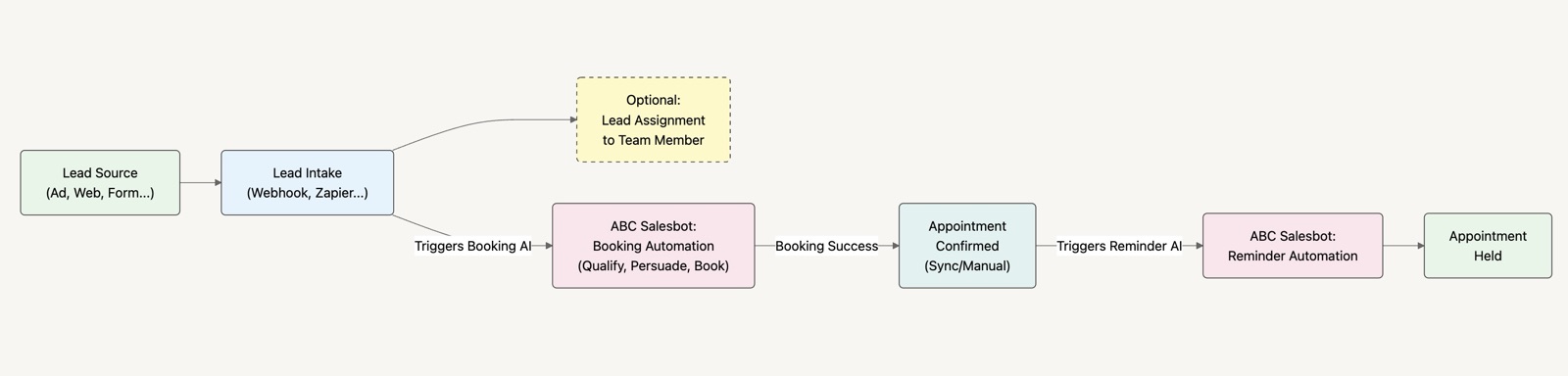
The appointment customer journey from lead source to appointment held
Explanation of the Stages:
- Lead Source: Where the potential customer initially interacts (e.g., Facebook Ad, Website Chat Widget, Google Search, Referral)
- Lead Intake: The lead can come in directly by clicking the WhatsApp button or saving your phone number & texting in. If using a form or Google Sheet, the lead's information can enter the ABC Sales AI app through a connector method (e.g., Webhook, Zapier, Google Appscript). This triggers the AI Booking Automation
- AI Booking Automation: The specialized AI agent engages the lead, listens to their concern, diagnoses what they need, provides information, handles objections, and attempts to book an appointment (by sending a link, using an API connection, or collecting preferred times for manual review). This automation includes follow-up messages if the lead doesn't book immediately
- Appointment Confirmed: The Appointment Booking System sends the signal back to ABC Sales AI when someone made the appointment (we'll set this up together later)
- Appointment Confirmation & Reminder Automation: This system automatically sends pre-appointment reminders & engages leads via WhatsApp to reduce no-shows. Once an appointment is booked (automatically via link/API or confirmed manually by a manager), the event details are sent back to ABC Sales AI. A confirmation message is sent, reminder messages are scheduled, and a special AI is ready to make the lead excited to show up
- Appointment Held: The customer attends the scheduled appointment
Step 2: Identify/Choose Booking System
Identify Your Booking System Connection
Based on the assessment below, choose the scenario that matches your current appointment booking setup, or the setup most suitable for your company:
We will receive a "signal" from the appointment booking app, either via Google App Script or Zapier, Pabbly, N8N.
Think of them like middlemen that apps trust to translate the signal from one app to another. You typically only need to choose to use one of them.
Step 3: Clarify Requirements & Prepare ABC Sales AI
Preparation Video
Before configuring the AI agent and automation flows, this crucial preparation step ensures we identify the specific information needed, clarify the desired interaction strategy, and set up the foundational Custom Fields in ABC Sales AI.
Part A: Identify The Required Information Fields
Based on your strategy and business needs, list all specific pieces of information the AI needs to collect, or that need to be stored related to the appointment (beyond basic Name, Email, Phone). This matters especially if you already collect these in your form (on your website, Google Form, etc.). We'll make this info available in the ABC Sales AI app.
📅 Appointment Details:
- Preferred Date & Time
- Meeting Link (if online, e.g., Zoom, Google Meet)
- Service Type / Reason for Visit
- Preferred Location / Address (if offline or on-site)
- Preferred Staff / Provider
⚙️ Service Context:
- Current Situation / Tools / Provider
- Pain Point or Objective
- Urgency / Timeline
- Budget Range
- Frequency / Recurrence (one-time, weekly, monthly, etc.)
👤 User Profile Details:
- Organisation Info (company name, size, or industry)
- Age / Category (age group, grade level, or customer segment)
- Service Target (who the service is for, e.g., self, child, vehicle, home)
- Special Preferences (language, gender of provider, etc.)
- Accessibility or Medical Info
📝 Optional Fields:
- Notes / Special Requests
- Promo Code / Package Chosen
- Referral Source
- Document Uploads (photos, IDs, reports, etc.)
✅ Qualification Answers (if applicable):
- Custom questions to assess fit or readiness, such as: "Are you currently using a similar service?", "Are you the decision-maker?", "Are you ready to proceed within the next X weeks?"
Part B: Prepare ABC Sales AI To Keep This Info As Custom Fields
Now comes the powerful part: our system can use the info you collect to personalise interaction with your lead. This way, your AI can remember the customer's key details. Think smarter AI, sending appointment reminders automatically, renewal or anniversary promotions, and more.
Step 4: Create The AI Agent That Accounts For All of This
First, be clear that we will need two sets of AI agents & follow-up messages. Think of the process: we first need to qualify leads, so that agent needs to be very good at answering questions and following up. Then another needs to be very good at service and reminders. What if you could have a specialist AI agent for each role?
- One for pre-booking (qualify, persuade & book the appointment)
- Another for appointment reminders (remind and make them excited for the appointment)
Let's create the first one, the pre-booking AI agent.
But First: Define Your Booking Strategy
Based on the booking method you identified or set up in Step 2, review the relevant strategy statement below. This defines how the AI should primarily operate, taking into account the information fields identified above. Keep this strategy in mind, you will need to enter it when configuring the AI Agent later.
Once you have written down your Booking Strategy clearly, the next part is to insert it into our AI Agent maker. Think of an AI that makes AI. 🤯
With our custom GPT to create the AI, it is super easy: just tell it what you do and your agent will be created in minutes. Here's how to use the Booking Strategy to create your AI Agent easily:
Create Your Booking AI Agent With The Custom GPT
This is the link to the custom GPT: salesbotsecrets.com/aitemplate
Step 5: Create Follow-Up Messages
What if people go silent? Or what if they didn't text in first? We reach out to them via follow-up message templates.
How do you create an effective follow-up? Most follow-ups are just one boring message that doesn't touch the pain point. What if you could create a follow-up sequence that outperforms most, in minutes, and just review it to see if it can go out directly?
There are two ways to create the follow-up messages.
Option A: AI Manager (Recommended)
Ask AI Manager inside ABC Sales AI, for example: "Create a follow-up sequence for appointment businesses with welcome, reminder, and no-show recovery." It drafts the messages, creates the templates with the right variables, and wires them into your automation.
Option B: Custom GPT
Here's how to use the custom GPT to create the follow-up messages:
Create Follow-Up Messages With The Custom GPT
This is the link to the custom GPT: salesbotsecrets.com/bookingtemplate
Step 6: Putting It All Together in the Automation
Can a phone number have multiple AI agents? Will the system intelligently pick the right AI to reply? Yes: we do that by attaching the AI Agent & scheduling the follow-up messages inside an Automation (a "container"), then assigning each lead into a container so they get the right AI + follow-up messages. This is where you really see the big picture and get the aha moment.
Combine AI Agent & Follow-Up Messages in an Automation
Step 7: Set Up the Appointment Reminder Automation & Calendar Trigger
How does the AI know if someone booked an appointment? This is why we need to send a "signal" back to the AI. This signal is sent by the appointment booking app. Here's how to do it:
Appointment Reminder Automation & Calendar Integration
Prompt format for the Reminder AI: "Can you modify the system prompt above, so that it is now customised to have the context that it is a reminder, its purpose is now to get people to show up on time, excited and prepared because they are now talking to people that have already booked the appointment."
Integration guides for your booking system:
- Integration with Google Calendar App Script
- Integrating with Zapier for Calendly and other appointment booking apps
- Integrating with a custom appointment booking app via API
Step 8: Adding The Fuel (Traffic), Integrating With Your Lead Source
Now that you have an amazing follow-up process that feels seamless to your client, it's finally time to pour in the fuel (leads) for your business! This is how you can automatically capture leads' contact info and have the AI auto follow up:
- Integration with Google Sheet
- Integration with Google Form (App Script)
- Integration with GoHighLevel
- Integration with Zapier (ClickFunnels, Facebook Lead Form, etc.)
- Using the Global Default automation for direct-to-WhatsApp leads
- Creating pre-filled messages (buttons & wa.me links) so you can auto-segregate leads into different automations
Step 9: Test & Tweak!
This is the step where you test registering at your lead intake source. Then try talking to the AI. Then book an appointment and see what happens next. You can tweak the AI and troubleshoot using:
- The Message Delivery Log
- Zapier Execution History
- Running the App Script
Once ready, let it go live and see how people reply in real life. Keep your expectations low at first: so far the test was only internal, and we don't yet know what real questions people will ask or whether the AI is equipped with that knowledge. Over time, as you tweak it, it gets better and better. Imagine an employee that never leaves, gets better as you train it and stay consistent, remembers the important details, and gets "upgraded" with skills automatically from time to time (as we upgrade the app).
Step 10: Make an Amazing AI Even More Amazing
The AI is already closing sales for you, but here's what you can do to level it up:
- Get the AI to auto tag so you can easily filter out leads that require your attention and use tags for remarketing (Lead Tagging setup)
- Get the AI to auto collect appointment time & location for manual booking of appointments (Lead Data Capture setup)
- Get the AI to auto move leads out of one automation and into another when a condition is triggered (Lead Automation setup)
Stuck on Any of the Steps?
We're giving you a bonus 60-minute 1:1 session worth USD $150 to help you get unstuck. Fill up this form to schedule your 1:1 with our expert: salesbotsecrets.com/experthelp