
Pause AI Employee Replies for a Lead
Sometimes your team may want to handle a conversation manually before letting the AI Employee reply again.
You can pause the AI Employee for a specific lead and choose how long the pause should last.
When to Use This
Use this when:
- A team member is personally handling the lead.
- You want to prevent the AI Employee from replying during a sensitive conversation.
- You only want to pause AI temporarily instead of turning it off permanently.
How to Pause AI Employee Replies
- Go to Inbox.
- Open the lead's conversation.
- Turn off the AI switch.
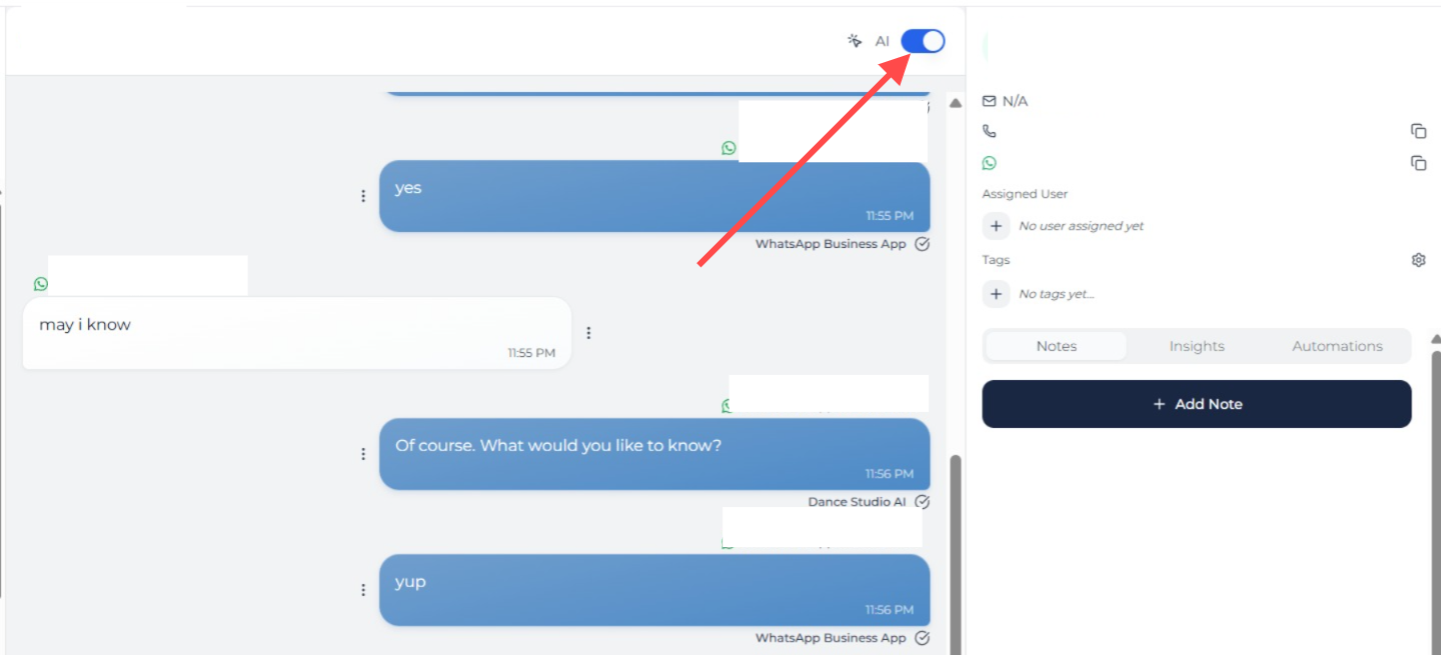
AI switch in the Inbox conversation
- Choose how long you want AI to stay off.
- Confirm the change.
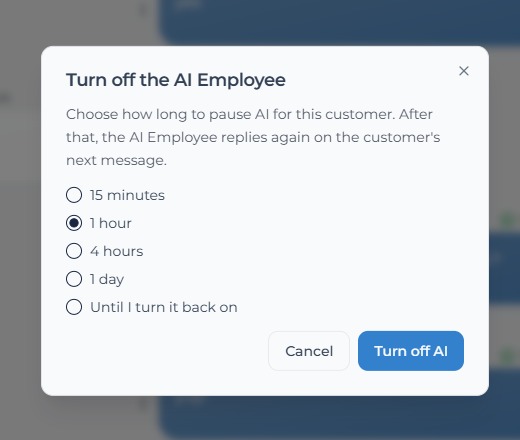
Turn off the AI Employee pause options
What the Pause Options Mean
You can choose a fixed time, such as a short pause or a longer pause.
When AI is paused, you may see a status such as AI off until...

AI off until status beside the AI switch
This means the AI Employee will stay off until the selected time.
After the pause ends, you may see AI resumes on the next customer message.
This means the AI Employee will not send a message immediately by itself. It will only start replying again when the customer sends the next message.
Turning AI Back On Manually
You do not need to wait for the timer to end.
You can turn the AI switch back on anytime if you want the AI Employee to resume earlier.
> Important: Pausing AI affects only the selected lead. It does not turn off your AI Employee for other leads, channels, or automations.