
How to Block and Unblock Leads
Use the Block and Unblock actions when you need to stop or resume messaging for a specific lead. This guide explains what blocking does, who can use it, and how to block or unblock a lead from the Leads list or Inbox.
What Blocking Does
When you block a lead:
- AI handling is disabled for that lead, so the AI no longer generates or sends automated replies.
- Scheduled messages are cancelled for that lead.
- The lead can no longer receive messages from the platform while blocked.
Blocking affects only the lead you block. It does not change your account-wide automation or any other lead.
> Important: Unblocking does not automatically re-enable AI handling or scheduled messages. After you unblock a lead, you must turn those settings back on yourself from the lead profile if you want automation to resume.
Who Can Block and Unblock
The Block and Unblock actions are available to Owner, Admin, and Standard roles. Users with more limited roles will not see these actions. For a full breakdown of what each role can do, see the user role permissions guide.
How to Block a Lead
Step 1: Open the lead from the Leads list. You can also start from the Inbox: open the conversation, then click the lead detail icon.
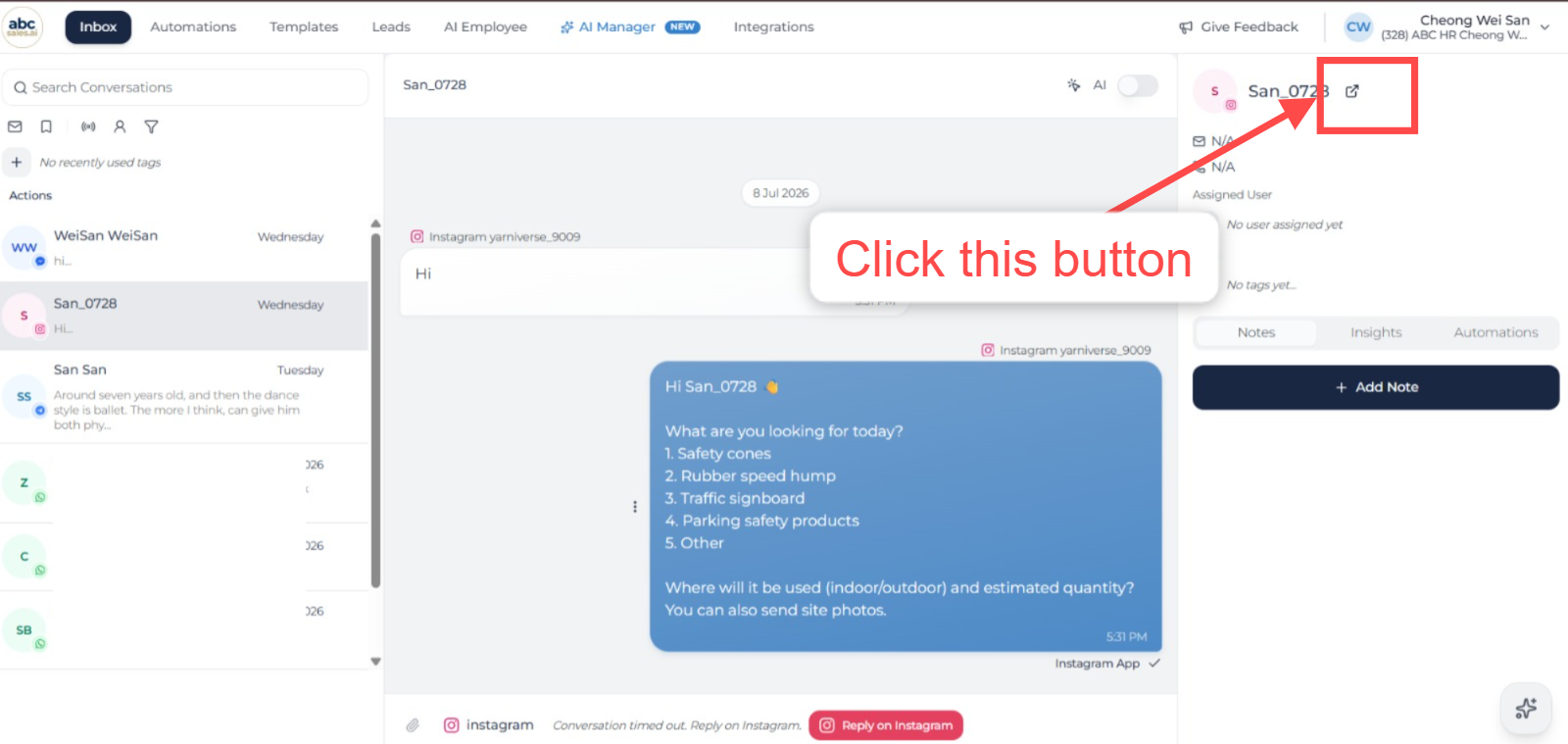
Open the lead detail panel from the Inbox
Step 2: Click Edit.
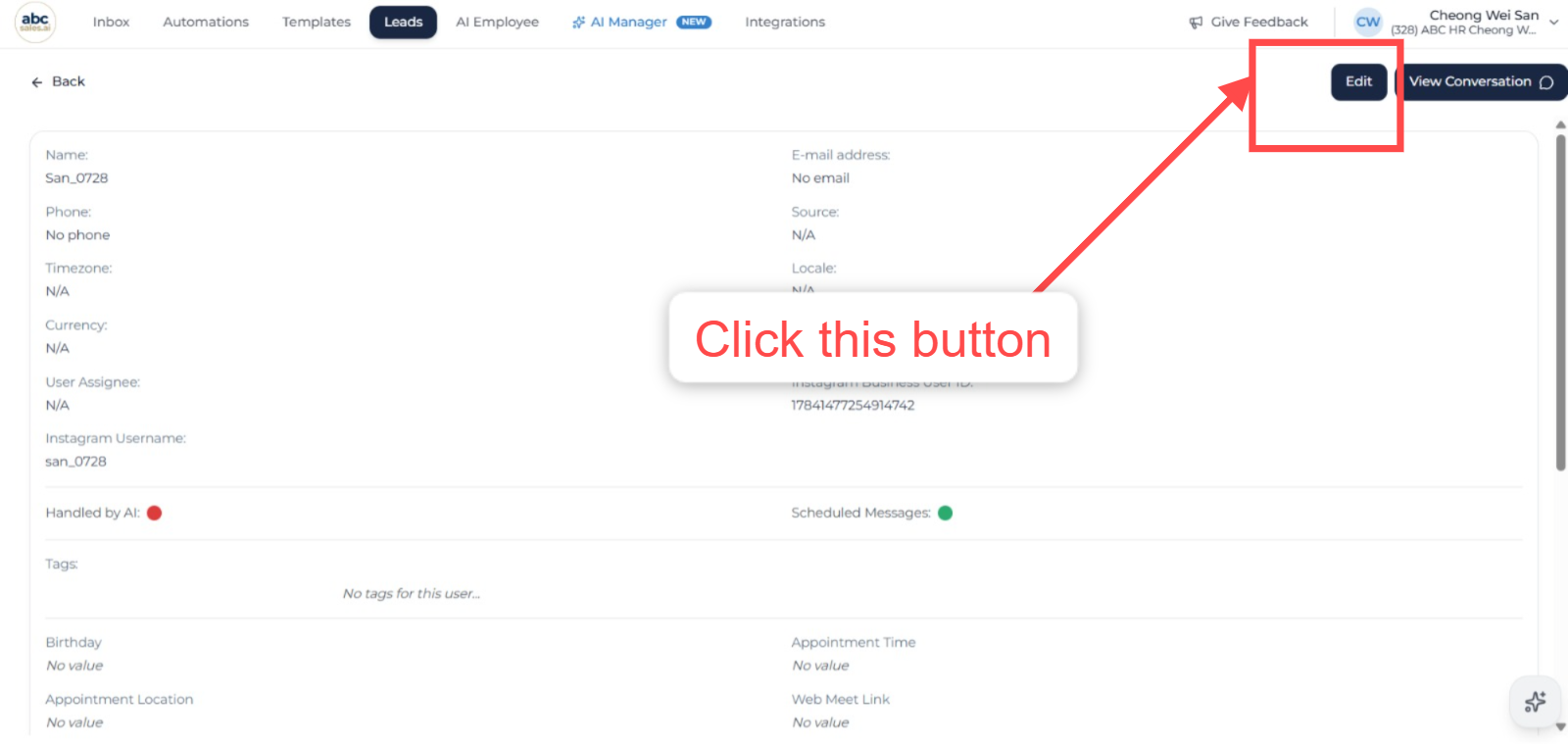
Edit button on the lead detail page
Step 3: Click Block.
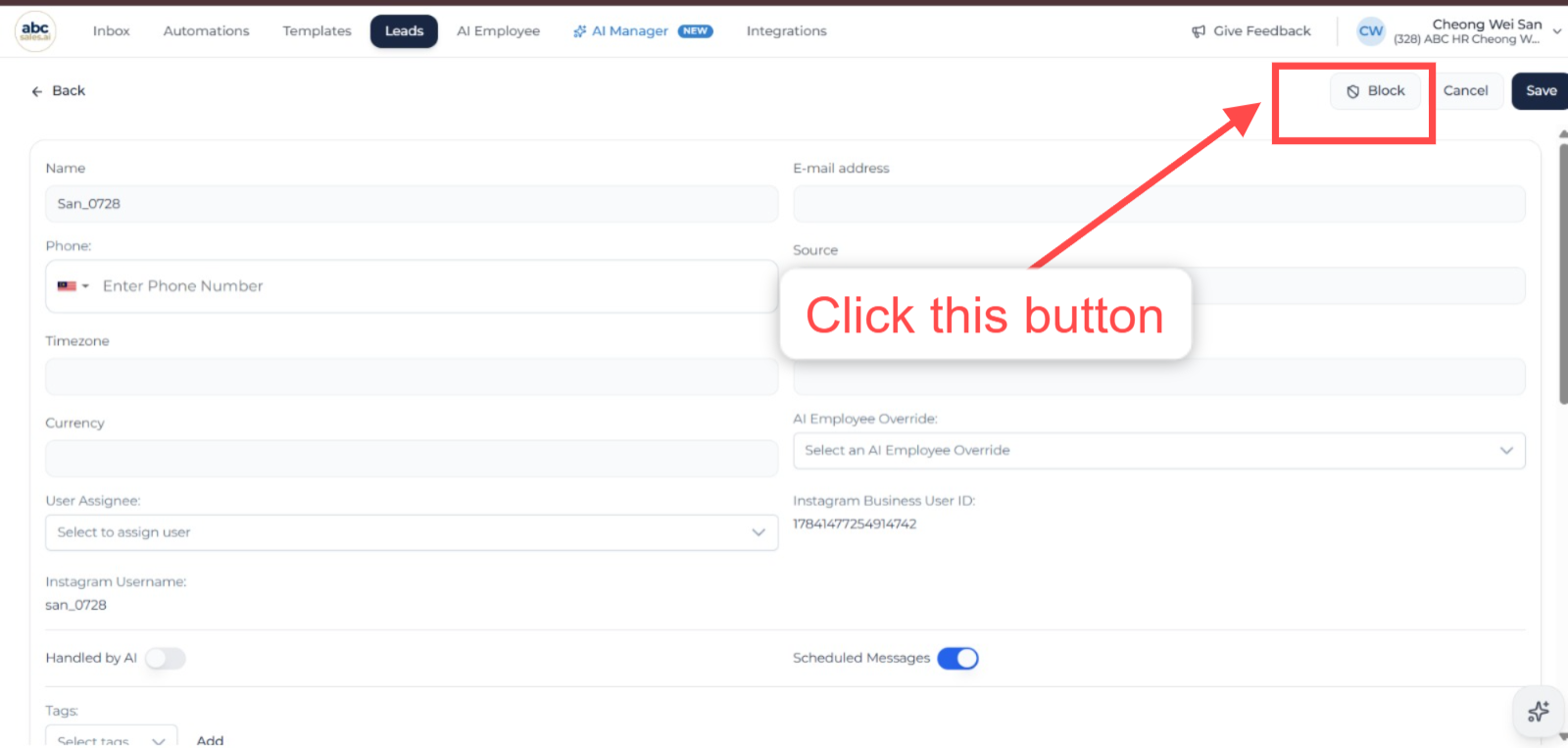
Block button in lead edit mode
Step 4: In the Block lead dialog, enter a Reason. The reason is required and can be up to 5,000 characters.
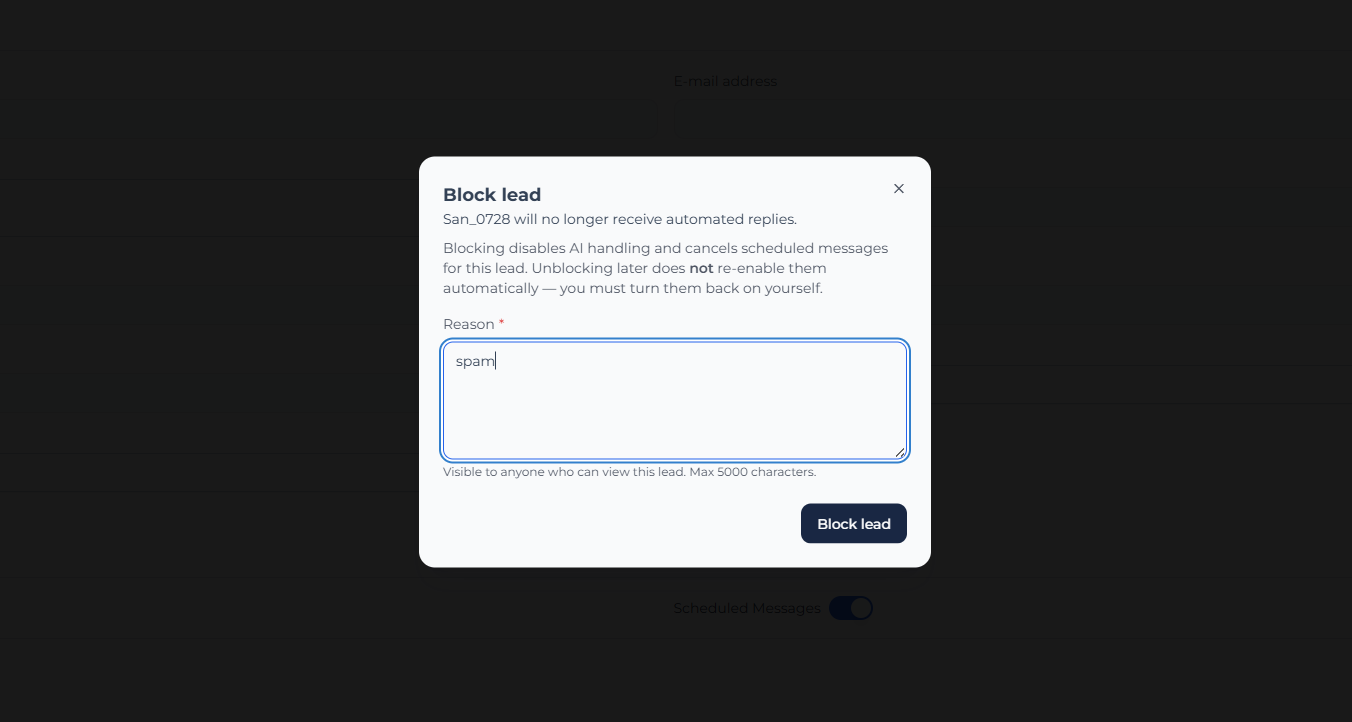
Block lead dialog with the required reason field
Step 5: Confirm. You will see a "Lead blocked" confirmation once it is done.
The reason you enter is visible to anyone who can view this lead, so write something your teammates will understand later (for example "Spam / repeated junk messages" or "Escalated to support, handled by a human").
Viewing a Lead's Block Status
When a lead is blocked, a status card appears on the lead profile showing:
- This lead is blocked
- Who blocked it and the date it was blocked
- The reason that was entered
- A reminder that AI handling and scheduled messages were disabled and will not be re-enabled automatically on unblock
Finding Blocked Leads
To see which leads are currently blocked, open the Leads list and use the Is blocked filter in the search bar. This lets you review or bulk-manage blocked leads without scrolling the full list.
How to Unblock a Lead
Step 1: Open the blocked lead and click Edit.
Step 2: Click Unblock.
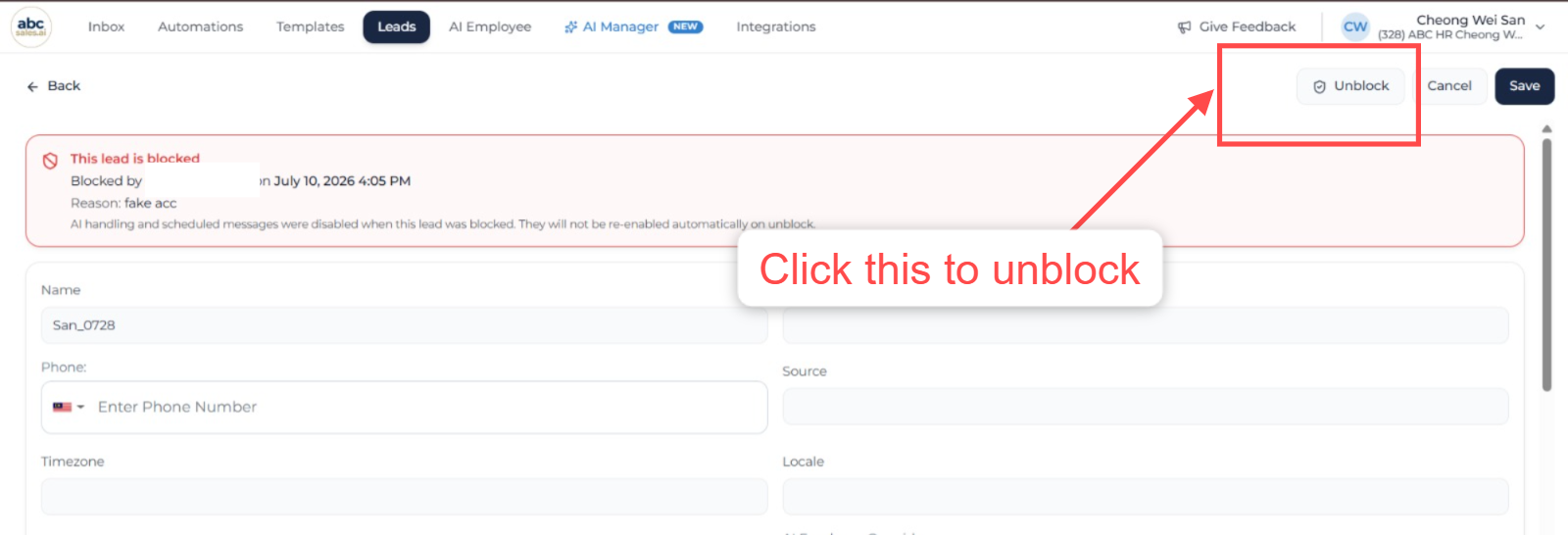
Unblock button on a blocked lead
Step 3: Confirm in the dialog. The confirmation reminds you that AI handling and scheduled messages stay disabled.
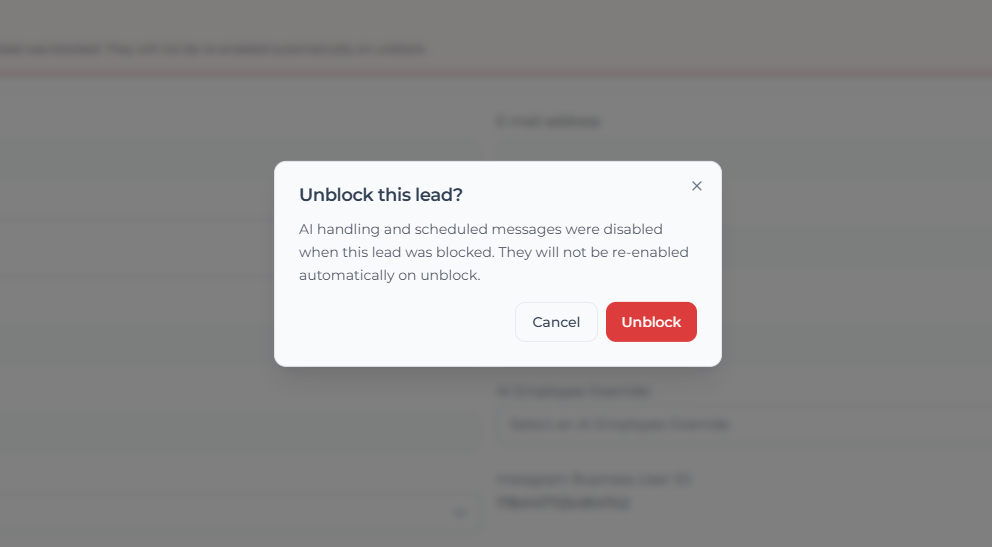
Unblock confirmation dialog
After unblocking, the lead can receive messages again, but automation does not resume on its own. Re-enable AI handling and scheduled messages from the lead profile if you want them back on.
Frequently Asked Questions
Does unblocking restore everything to how it was before?
No. Unblocking only lifts the block. AI handling and scheduled messages remain off until you manually turn them back on from the lead profile.
Will other leads be affected when I block one lead?
No. Blocking applies to a single lead only.
Can I block a lead from the Inbox?
Yes. The Block and Unblock actions are available both on the lead profile and in the Inbox lead detail panel.