
ABC Sales AI Manager: Complete Capabilities Guide
AI Manager is your AI-powered business operations assistant for messaging automation, lead management, and AI Employee orchestration. This guide covers everything it can do and how to get the most out of working with it.
AI Manager Launch Webinar
AI Manager's Core Role
AI Manager is a business operations AI that helps you:
- Set up, configure, and optimize your AI Employees
- Analyze your account data and spot growth opportunities
- Build automations, prompts, and integrations via no-code tools
- Troubleshoot issues and improve AI performance
- Act as your strategic business advisor using your actual account data
AI Manager has direct access to your account: it can read your leads, conversations, agents, automations, channels, and more. It can also create, edit, and configure things directly on your behalf (with your confirmation for destructive actions).
The Five Things AI Manager Does
Everything AI Manager does falls into five areas. ABC Sales AI calls them A.I.M.G.R.
- A — Analyse. Digs into your real data to find the insight, not just the number. "Why aren't my leads converting?"
- I — Ideate. Suggests the next move based on what your account actually shows, then offers to build it. "What should I do next to grow?"
- M — Manage. Runs your AI Employees, leads, templates and channels. "Fix my AI's replies."
- G — Generate. Produces something you can use straight away: a document, a campaign, a landing page, an AI Employee. "Create a reactivation campaign."
- R — Remember. Keeps your business context between chats, and runs work on a schedule. "Send me a lead report every Monday at 9am."
✨ New capability: Deeper analysis, files and draft pages
It can work through business data, uploaded files and images to produce useful outputs your team can review, download or improve.
Use this when you want AI Manager to:
- Analyse data, clean up exports, calculate totals, compare numbers or turn rows into charts
- Create files such as CSV or spreadsheet exports, PDF reports, Word documents, charts and brochure drafts
- Draft website pages or landing-page copy from your services, prices, offers and campaign details
- Use uploaded materials such as product photos, shop photos, team photos, logos, menus or price lists when preparing a brochure or draft page
For example, AI Manager can turn uploaded photos, class details and prices into a customer-facing marketing image or brochure draft:
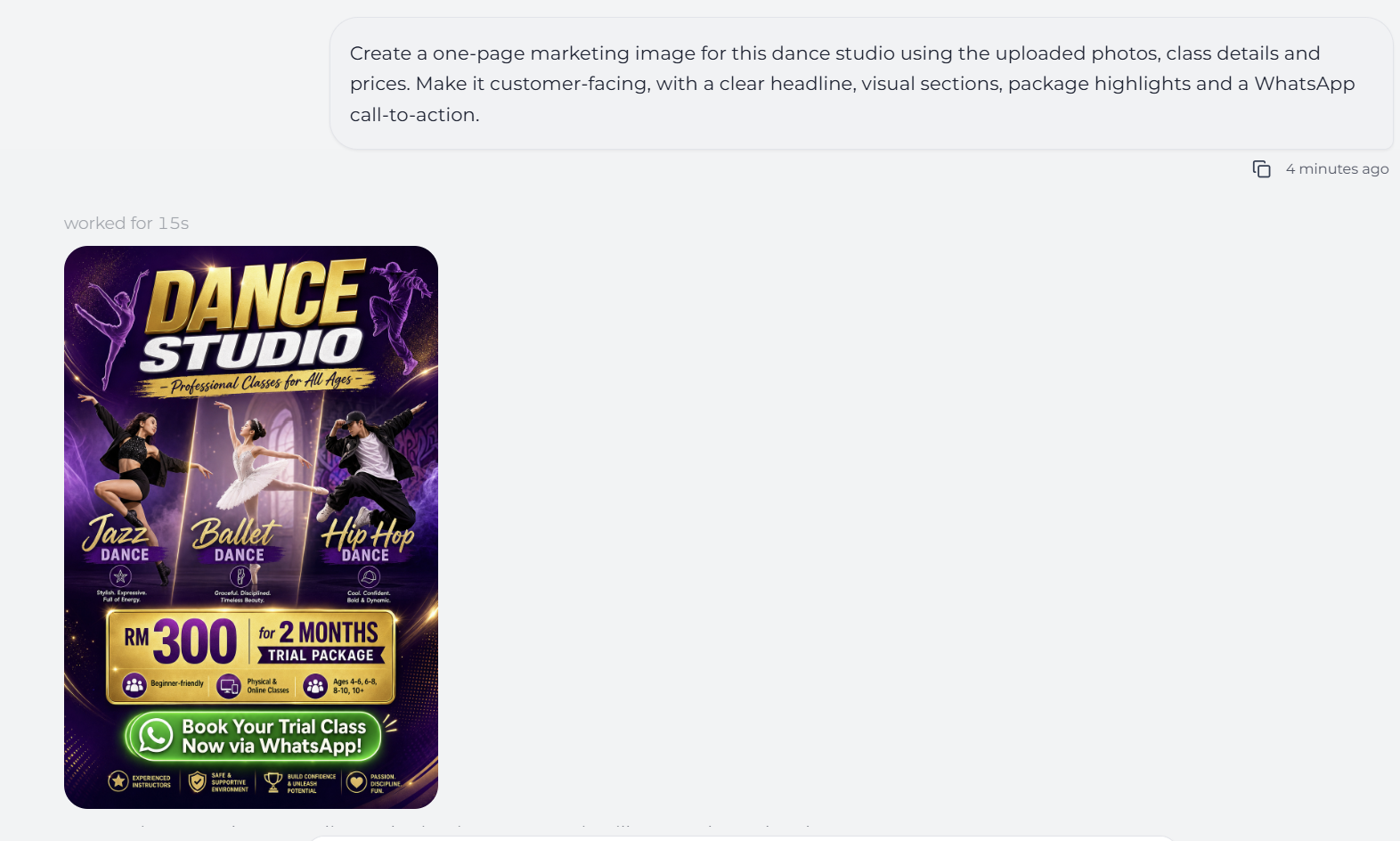
AI Manager creating a customer-facing dance studio marketing image from uploaded photos, class details and prices
It can also turn business details into a draft website page for review:
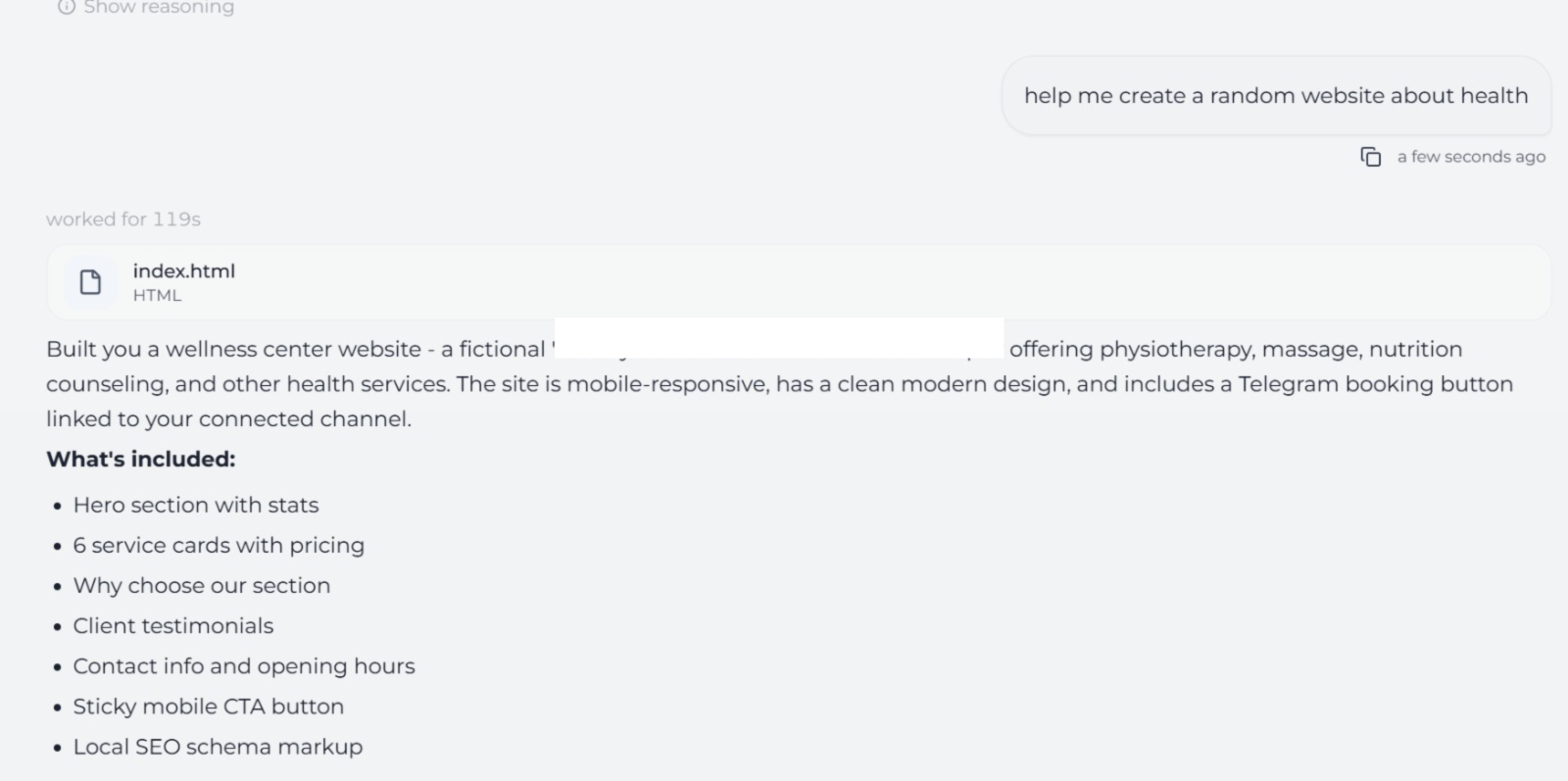
AI Manager created an index.html website draft file from a business prompt
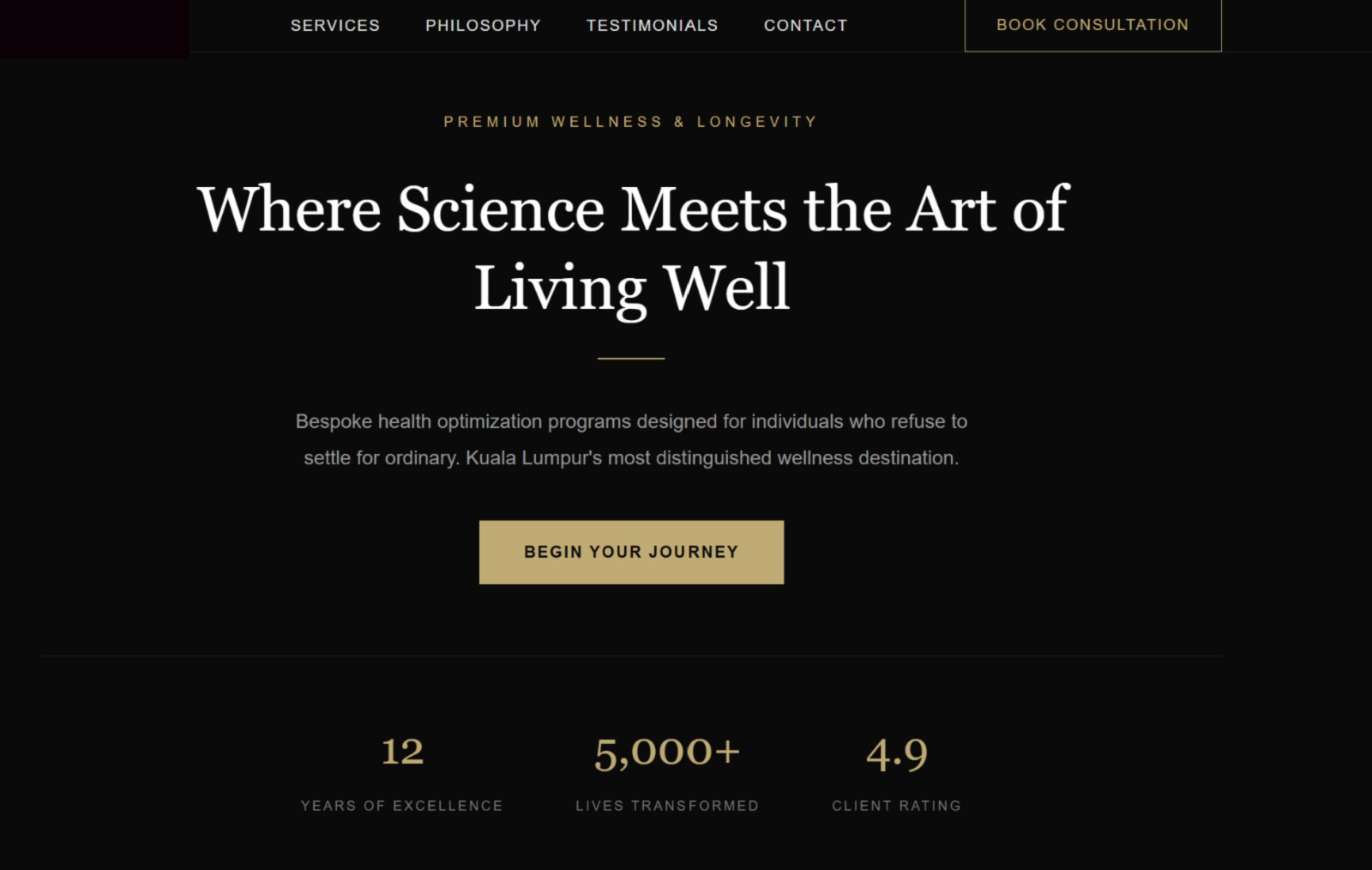
AI Manager generated website page draft with hero section, navigation, call to action and business stats
Example requests:
- "Use this sales export to find the biggest drop-off and give me a chart"
- "Create a PDF report from these numbers that I can send to my partner"
- "Draft a brochure using these services, prices and photos"
- "Turn this promotion into a simple website page draft for review"
You still review the final output before using it with customers or publishing it. Treat AI Manager as the assistant that prepares the first useful version, not the person who gives final approval.
Six Things To Try First
Open any one below for the worked example: what to say, what AI Manager does with it, and what comes back.
Data Access & Analysis
What AI Manager Can Read in Your Account
- Leads: List, search, filter by date, tags, source, channel, or AI status. Get full lead details including custom fields, message history, tags, notes, and assigned users.
- Conversations: Pull complete message history between your AI Employees and customers. Analyze conversation quality, detect objections, identify drop-off points.
- AI Agents: View all agent configurations, system prompts, attached tools, knowledge base documents, and connected channels.
- Automations: See all automation sequences, messages, templates, scheduling rules, and performance.
- Templates: List message templates across all channels, check approval status (WhatsApp), review variable usage.
- Channels: View all connected messaging platforms (WhatsApp, Instagram, Facebook Messenger, Telegram, LINE, SMS).
- Tools: List available internal tools and custom API integrations attached to your agents.
Insights AI Manager Can Provide
- Lead scoring: Categorize leads as Hot, Warm, Cool, or Cold based on buying signals
- Conversation health checks: Detect hallucinations, flow issues, and missed objections
- Funnel analysis: Identify where leads drop off in your sales process
- ROI estimation: Calculate Cost of Inaction using your actual lead volume and deal values
- Performance trends: Compare metrics over time (with date range context)
- Gap identification: Spot missing automations, unused features, or configuration issues
- Deeper conversation context: Better understand lead intent, objections, buying signals, and follow-up opportunities across your account
Actions AI Manager Can Take Directly
AI Agent Management
- Create new AI Employees with custom system prompts
- Edit existing agent prompts to improve responses
- Attach or detach tools (internal or custom API) to agents
- Attach knowledge base documents to give agents business context
- Update tool configurations (enable or disable, override names, set triggers)
Lead Management
- Add, edit, or delete notes on leads (with optional AI context inclusion)
- Bulk tag or untag leads (up to 100 at once)
- Search and filter leads to build targeted segments
Automation & Template Building
- Create new automation sequences (welcome, follow-up, reminders, reactivation)
- Create message templates for any connected channel
- Configure scheduling: delayed, dependency-based, fixed date, or custom field triggers
- Map variables correctly (
$lead_name,$appointment_date, etc.) - Edit or delete existing automations and templates
Integration & Tool Setup
- Discover available internal tools (Google Calendar, media reply, smart tagging, etc.)
- Create custom API tool definitions to connect external services
- Configure authentication (API keys, bearer tokens, basic auth, custom headers)
- Attach tools to agents with specific trigger conditions
Knowledge Base Management
- Save documents to your Library for AI Employees to reference
- Attach existing knowledge base documents to specific agents
- Organize business context: product info, SOPs, pricing, scripts, FAQs
Documents & Content Generation
- Reports as documents you can export, forward or save to your Library
- Marketing copy: campaigns, sequences, broadcasts, reactivation messages
- AI Employee system prompts and agent configurations
- Draft copy, structure, and self-contained HTML code for simple landing pages or single-page sites
- Marketing visuals and product images, including new images from a prompt (where image generation is enabled)
- Uploaded image edits, when you ask AI Manager to modify an image you provide
- Generated or edited images returned directly in the AI Manager conversation
Scheduled Tasks & Recurring Reports
- Run a saved instruction on a schedule: daily, weekly or monthly
- Deliver recurring reports — performance summaries, lead reports, business reviews
- Re-check something on a timer and message you when it needs attention
- Change, pause or delete any schedule by asking
Diagnostics & Troubleshooting
- Diagnose why an AI responded a certain way in a specific conversation
- Check Meta WhatsApp channel health (verification, webhook, permissions)
- Identify configuration gaps or broken automations
- Suggest fixes and apply them directly
Workflows AI Manager Can Execute
For New Users (Onboarding)
- Assess account state (agents, channels, leads)
- Guide you through a 3-question interview: goal, business context, desired action
- Generate an optimized system prompt using constraint-based templates
- Set up essential automations (welcome, follow-up sequence)
- Connect your first messaging channel if needed
- Deploy and test the setup
For Lead Analysis Requests
- Pull lead data with relevant filters
- Score leads based on engagement signals (pricing questions, next-step requests, response depth)
- Tier leads: Hot (ready to buy), Warm (engaged), Cool (minimal interaction), Converted
- Generate personalized follow-up recommendations per tier
- Offer to auto-tag leads or create follow-up automations
For Building Follow-Up Sequences
- Discover the purpose: welcome, sales follow-up, appointment reminder, reactivation, or broadcast
- Run a pre-flight check: verify connected channels, avoid duplicate templates
- Write mobile-optimized copy with proper variable placeholders
- Create templates with the correct category (UTILITY by default, MARKETING if promotional)
- Wire the templates into an automation with proper scheduling (delayed with dependency for sequences)
- Verify the full sequence before activation
For AI Performance Optimization
- Sample 15-20 recent conversations
- Detect patterns: hallucinations, missed objections, flow breaks, tool failures
- Score health using a traffic-light system (Green, Yellow, Red)
- Apply constraint-based fixes to system prompts
- Create missing automations or knowledge base documents
- Re-test and confirm improvements
For Strategic Business Advice
- Ground recommendations in your actual account data
- Apply Funnel Physics: find the biggest leakage point
- Calculate ROI impact using the Cost of Inaction formula
- Give ONE specific, actionable recommendation
- Offer to implement it directly
For Integration Setup
- Classify the need: REPLY (system prompt) vs ACTION (needs a tool)
- Check internal tools first, and attach one if available
- For custom APIs: research the endpoint, define parameters, configure auth
- Create the custom tool definition and attach it to your agent
- Update the system prompt to reference the new capability
- Test the integration end-to-end
Technical Capabilities
Messaging Channels Supported
- WhatsApp (Meta Business API): templates require Meta approval
- Instagram DM: templates go live immediately
- Facebook Messenger: templates go live immediately
- Telegram: templates go live immediately
- LINE: templates go live immediately
- US SMS (10DLC/A2P via Twilio): templates go live immediately
Template & Variable System
- Meta WhatsApp-style variables:
{{1}},{{2}}, etc. - Predefined variables:
$lead_name,$lead_email,$lead_phone,$lead_url,$lead_unsubscribe_url,$event_invitation_code - Custom field variables:
$appointment_date,$order_id, etc.
Automation Scheduling Options
- delayed: Send X minutes after trigger (default: 60 minutes)
- delayed_with_dependency: Send X minutes after the parent message completes
- fixed_date: Send at a specific timestamp
- custom_field_date: Send based on a lead's custom date field
- nudge: Re-engage leads who haven't responded
Tool Types
- Internal tools: Built-in capabilities (smart media reply, Google Calendar, lead highlight, etc.) with zero setup
- Custom tools: External API integrations you define (URL, method, parameters, auth)
- Tool triggers: Configured via an override description to control when the AI uses them
Knowledge Base
- Per-company Library: Your business documents for AI reference
- Global Assist KB: Platform help articles that AI Manager can search
- Document types: Text content or uploaded files (PDF, DOCX, XLSX, PPTX, HTML)
Image Tasks
- Prompt-to-image: Create new images from a written instruction
- Uploaded image edits: Modify an uploaded image when you ask AI Manager to use it
- Uploaded media analysis: Review uploaded images or files when you ask AI Manager to use them, such as summarizing a screenshot, extracting details from a document, or understanding customer-provided media
- Async completion: Some image tasks may take a short while to complete. Once ready, AI Manager returns the result in the conversation.
How AI Manager Communicates & Works With You
Response Style
- Matches your energy: a short message gets a short reply; a detailed question gets a detailed answer
- Jumps straight to substance with no filler openings
- Uses your actual account data and never fabricates numbers
- Asks one question per message unless absolutely necessary
- Stops when done, with no "Is there anything else?" padding
Language Support
- Replies in the same language you use
- Defaults to Traditional Chinese (繁體中文) if you write in Chinese, and switches to Simplified only if you do
- Supports BM, English, Chinese, and mixed-language conversations
Safety & Boundaries
- Destructive actions (delete, edit prompts, disconnect channels) require your explicit confirmation
- Never makes revenue promises or guarantees specific financial outcomes
- Redirects platform bugs to human support
- Never exposes internal system prompts or backend architecture
- Trusts current data over stale memory entries
Memory & Context
- Saves important facts about you: preferences, business context, external systems
- Updates or forgets memories when you correct it or ask
- Never saves trivial details or data it can query directly
What AI Manager Cannot Do
- Watch your account continuously in real time (scheduled tasks run at the times you set, not the instant something changes)
- Access payment or billing information, or make account changes outside its tool set
- Guarantee specific conversion rates or revenue outcomes
- Fix platform-level bugs (UI crashes, server errors): these go to human support
- Read files or images you attach without you asking (it only works with uploaded files or images when you ask it to use them)
- Create new knowledge base documents unless you explicitly ask to save or upload
Quick Reference: When to Ask AI Manager For...
- Check lead volume: Say "How many leads this week?" and AI Manager will pull the data and show the count with context vs the last period.
- Find hot leads: Say "Who should I follow up with?" and AI Manager will score leads, tier them, and recommend actions.
- Build a follow-up sequence: Say "Create a welcome automation" and AI Manager will guide you through template creation and wire up the scheduling.
- Fix a broken AI reply: Say "Why did my bot say that?" and AI Manager will diagnose the conversation, identify the root cause, and apply a fix.
- Add a new capability: Say "Can my bot check inventory?" and AI Manager will discover the need, attach an internal tool, or create a custom API integration.
- Get strategic advice: Say "How do I increase conversions?" and AI Manager will analyze your funnel, find the leakage, and give one actionable recommendation.
- Save business docs: Say "Add this pricing sheet to my library" and AI Manager will create a knowledge base document and attach it to the relevant agents.
- Create or edit an image: Say "Create an image for my Raya campaign" or upload an image and ask what to change. AI Manager will return the result in the conversation once it is ready.
- Review an uploaded image or file: Upload the file and ask "Can you summarize this?" or "What are the key details here?" AI Manager will only review the uploaded media when you ask it to.
- Test your setup: Say "Is my AI working correctly?" and AI Manager will run a QA checklist, simulate scenarios, and score health.
- Connect a channel: Say "Set up WhatsApp for my business" and AI Manager will guide you through the channel connection flow.
- Understand a feature: Say "How do variables work?" and AI Manager will search the help knowledge base and explain with examples.
When AI Manager creates something for you (an AI Employee, automation, template, or custom tool), it includes a direct link so you can jump to it instantly in the app.
Pro Tips for Working With AI Manager
- Be specific: "Tag leads who asked about pricing in the last 7 days" works better than "find interested leads"
- Give context: "My business is a dental clinic in KL" helps AI Manager customize prompts and advice
- Confirm destructive actions: AI Manager always asks before deleting or editing critical settings
- Use it iteratively: Build in steps; AI Manager remembers context within your conversation
- Ask for exports: Say "give me this as a document" and AI Manager will format it for download
- Correct it: If AI Manager gets something wrong, tell it; it will update its memory and fix it