
AI 工具:將潛在客戶指派給使用者
Assign Lead to User(將潛在客戶指派給使用者)工具讓你的 AI 業務員工在對話過程中,將當前潛在客戶指派給指定的團隊成員。你只需提供潛在客戶應指派對象的使用者 ID(User ID),當滿足你設定的條件時,AI 就會觸發指派。
範例描述:「Use this tool to assign the current lead to user with ID 123 because they are the most appropriate agent to handle this inquiry.」
第 1 步:建立你的使用者
前往 ABC Salesbot > Users(使用者)並建立你的團隊成員,然後為他們賦予 Trusted Employee(受信任員工)角色。
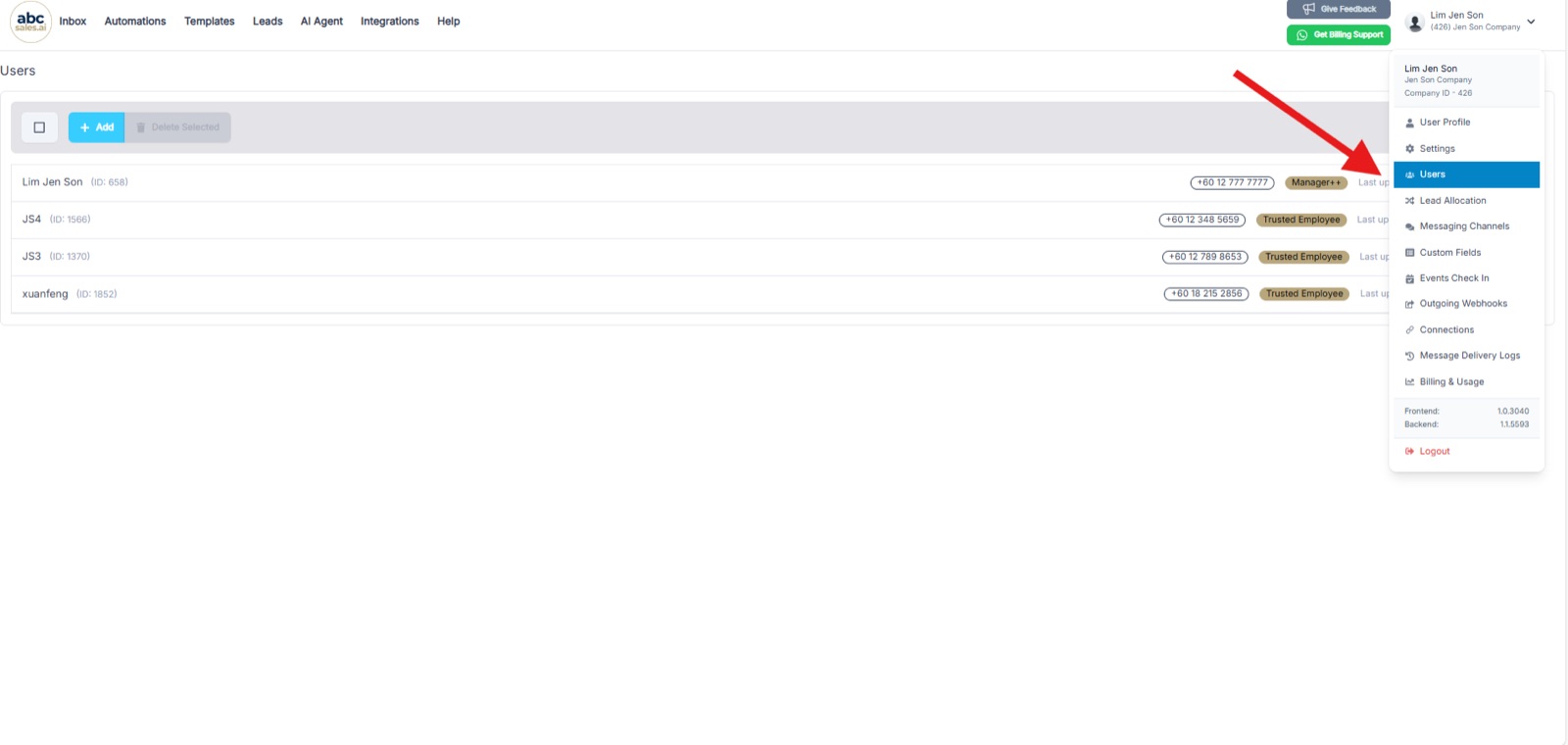
開啟帳戶選單並選擇 Users,即可查看你的團隊成員列表
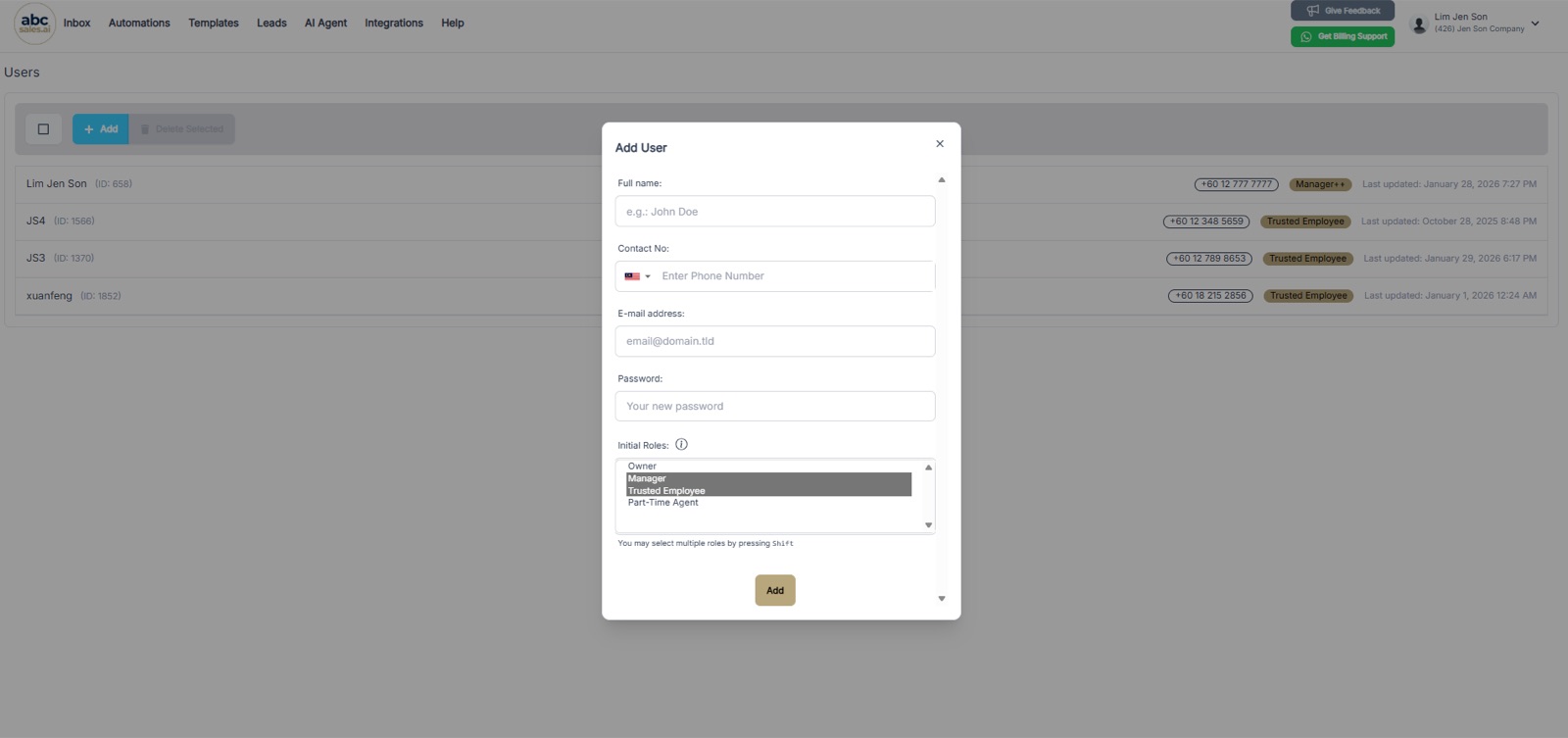
在 Add User 表單中,在 Initial Roles 下選擇 Trusted Employee
第 2 步:複製使用者 ID
每個使用者都有一個唯一的 ID,設定工具時會用到。複製你想要接收潛在客戶的團隊成員的使用者 ID,它顯示在 Users 列表中該使用者姓名的旁邊。
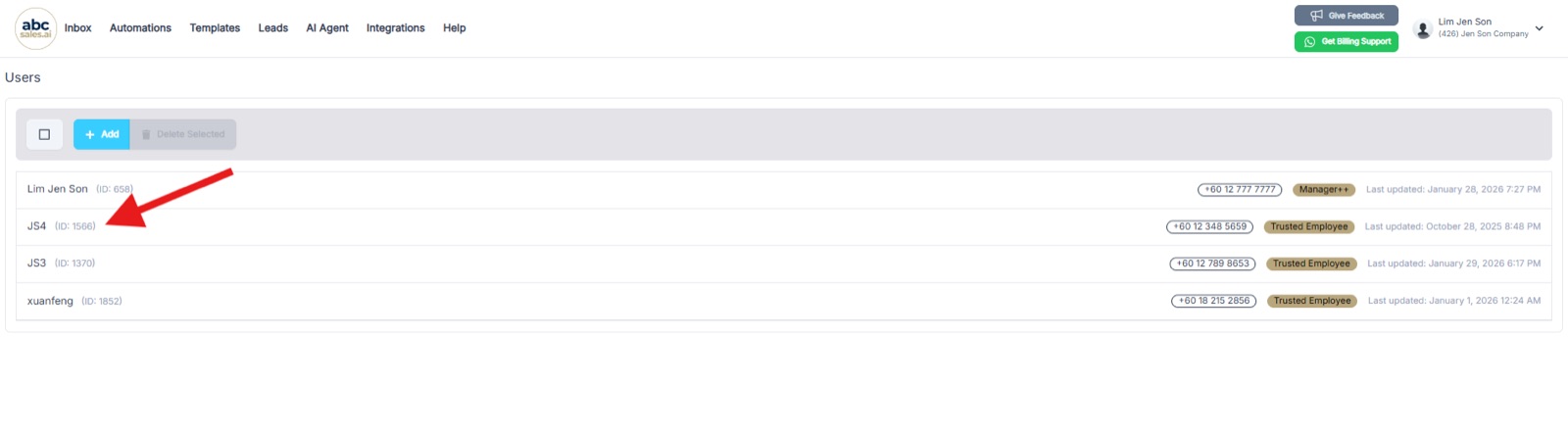
每個使用者的 ID 顯示在 Users 列表中其姓名旁邊
第 3 步:新增 Assign Lead to User 工具
前往 AI Agent,新增 Assign Lead to User 工具。
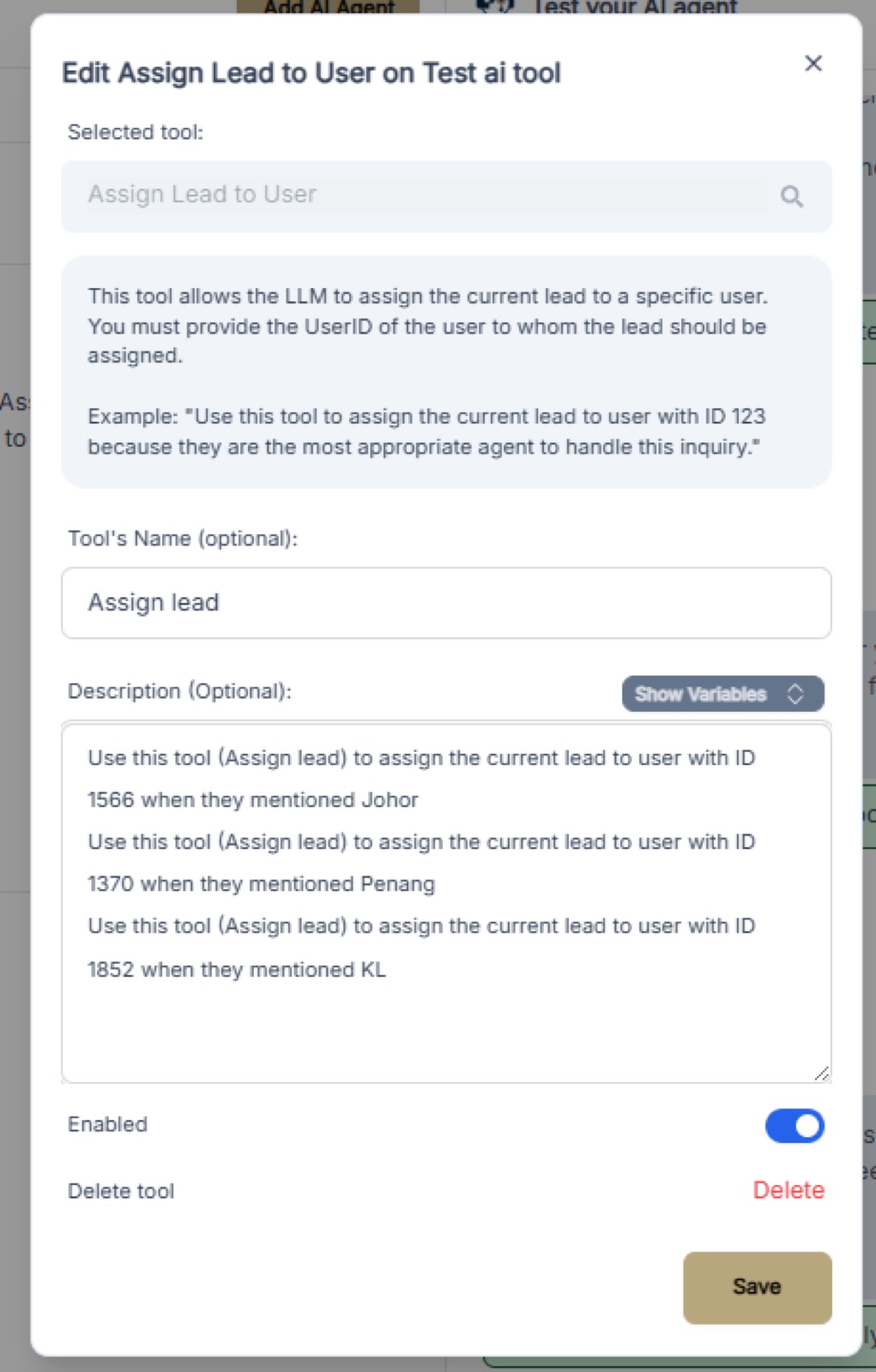
選擇 Assign Lead to User 作為工具,並填寫名稱和描述
第 4 步:使用描述格式
在工具描述中使用以下格式:
> Use this tool (tool name) to assign the current lead to user with ID [USER_ID] when they mentioned (triggered event)
範例
- Use this tool (Assign lead) to assign the current lead to user with ID 1566 when they mentioned Johor
- Use this tool (Assign lead) to assign the current lead to user with ID 1370 when they mentioned Penang
- Use this tool (Assign lead) to assign the current lead to user with ID 1852 when they mentioned KL
第 5 步:將描述貼到你的系統提示詞中
將工具描述新增到 AI Agent 的系統提示詞(System Prompt)中,這樣 LLM 才知道何時觸發指派。
第 6 步:透過 WhatsApp 測試你的 AI
發送一則包含觸發關鍵字(例如「Johor」、「Penang」、「KL」)的測試訊息,驗證潛在客戶是否被正確指派給指定的使用者。你應該會在對話中看到一則確認訊息,並在潛在客戶的資料頁上看到已指派的使用者。
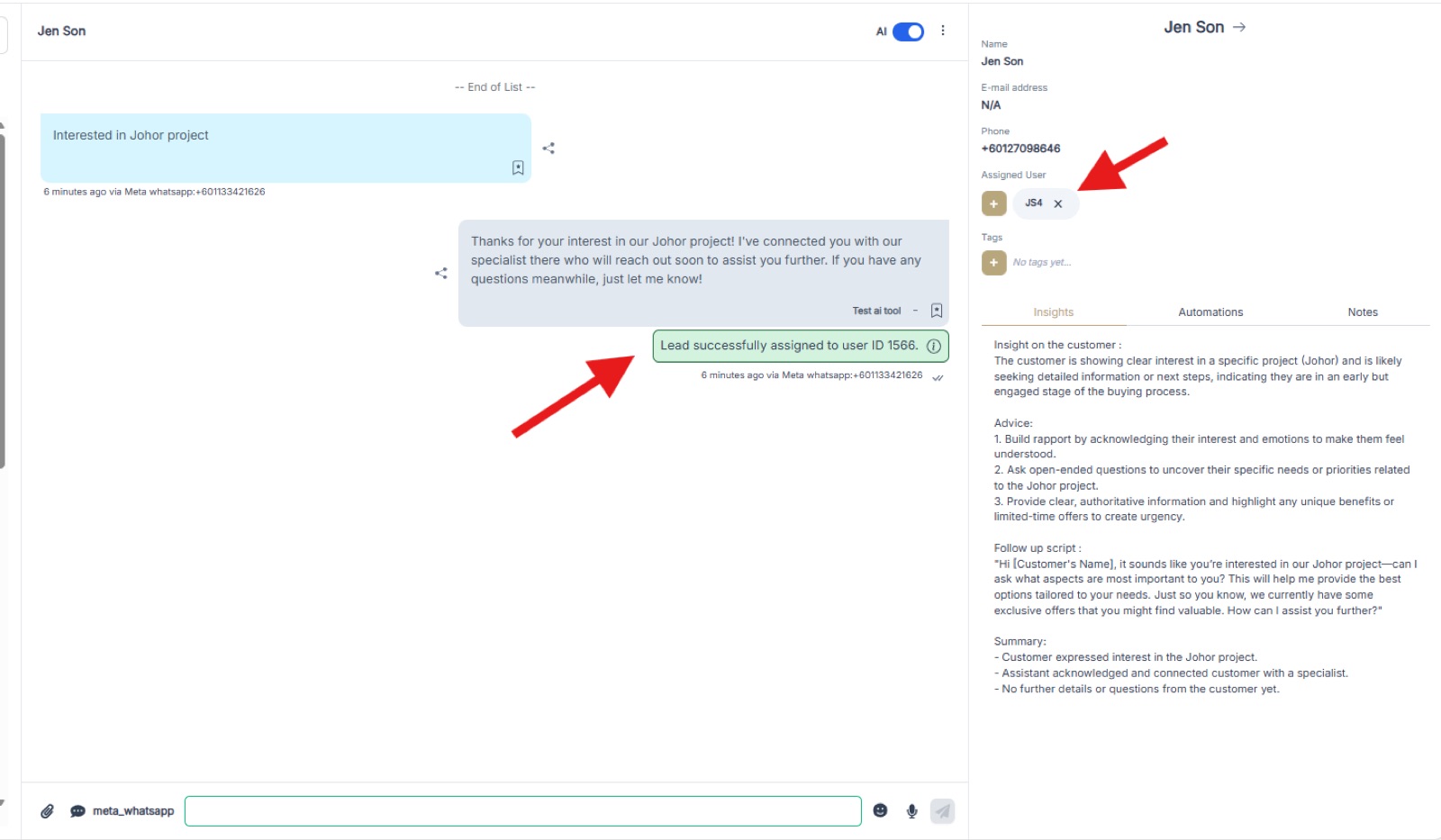
一段測試對話,顯示潛在客戶已成功指派給 ID 為 1566 的使用者,且潛在客戶資料頁上的 Assigned User 已更新